See what your LinkedIn post will look like in the feed
View the "more…" cutoff, compare desktop and mobile, and use AI to generate or refine your draft before publishing.
By the makers of
Join top creators and companies using Typefully to publish and grow on LinkedIn
Join 10,000+ customers










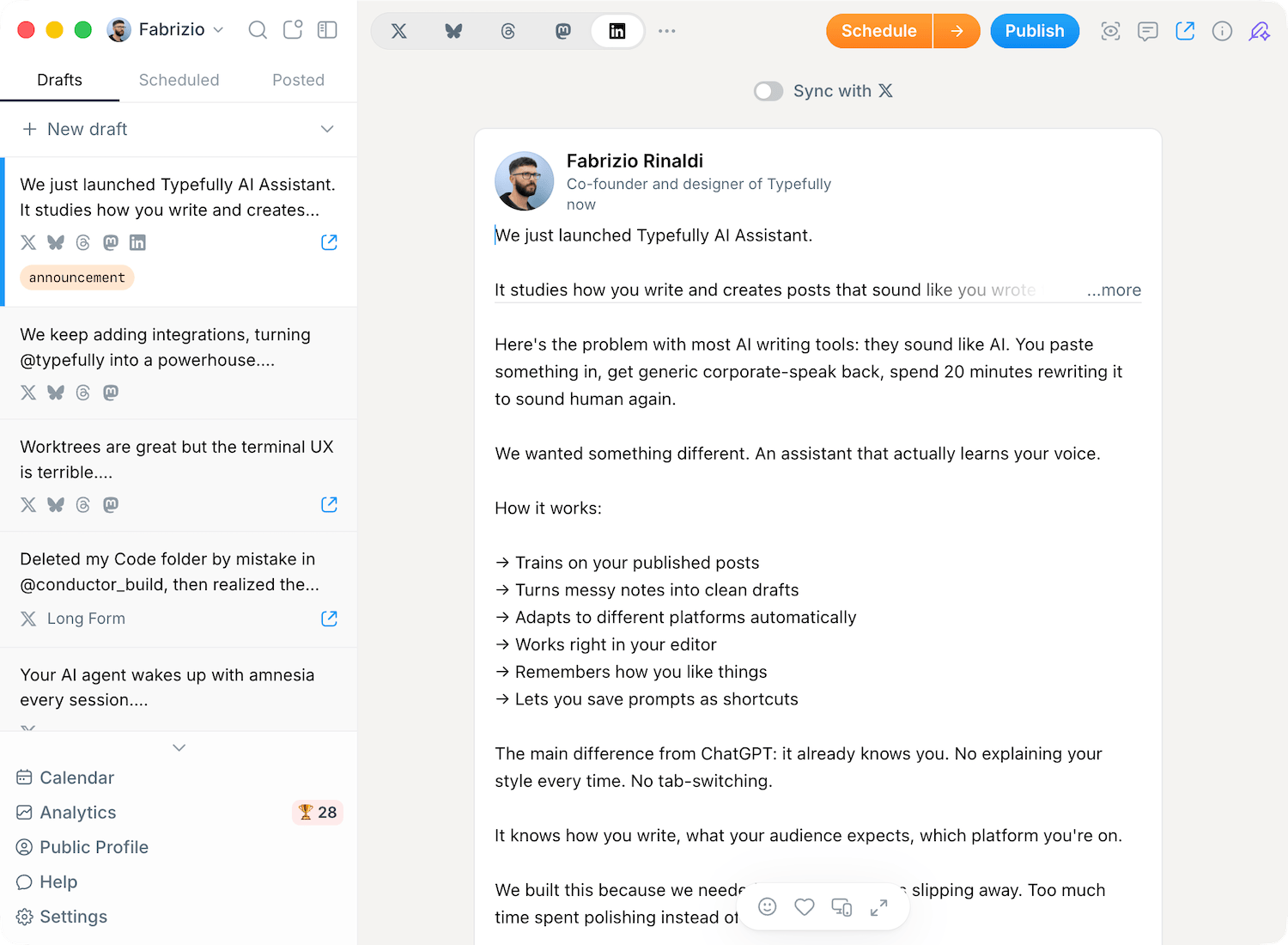
How to preview a LinkedIn post before posting
The useful part is not just seeing the text. When you preview a post on LinkedIn before publishing, you catch where the feed collapses the copy, how the opening reads in-feed, and whether the post holds up on mobile versus desktop.
Paste your draft into the LinkedIn preview tool
Drop in the exact text you plan to post. The preview updates as you type so you can check spacing, line breaks, and whether the hook still lands in-feed.
What to check
Use the real draft, not a shortened version, so the line breaks and pacing stay honest.
Switch between desktop and mobile LinkedIn preview
Use both layouts before publishing. A post that feels clean on desktop can become dense on mobile, especially when the opening lines do too much work.
What to check
If the intro feels balanced on desktop, make sure it still breathes once the mobile layout gets tighter.
Catch the "more…" cutoff before you post to LinkedIn
A LinkedIn post preview is most useful when it helps you spot where the feed truncates your copy. Adjust the first lines until the preview feels strong enough on its own.
What to check
Aim for the cutoff to happen after a complete thought, not in the middle of the setup.
What a LinkedIn post preview helps you catch
A LinkedIn preview is mostly about feed readability. Before publishing, check whether the first lines pull attention, whether the post still scans well after truncation, and whether the structure stays readable across devices.
Opening lines that actually earn the click
Your first two or three lines decide whether the rest of the post gets opened. Previewing the post makes weak hooks and overloaded intros obvious before you publish.
"More…" cutoff and pacing
A LinkedIn post viewer is most useful when it helps you judge truncation. You can quickly see whether the cutoff happens after a strong idea or at an awkward point.
Desktop vs mobile readability
Line breaks, whitespace, and list rhythm change across screen sizes. Checking both layouts helps you avoid posts that feel polished on desktop but crowded on mobile.
Preview intent, not formatting intent
This tool is for seeing how a LinkedIn post will look before posting. If you specifically need styled Unicode text, use a LinkedIn text formatter instead.
LinkedIn post tips to get more engagement
A preview tool shows you the problem. These tips help you fix it. Use them while editing to write posts that hold attention in a fast-moving feed.
Lead with a hook, not a summary
The first line of your LinkedIn post decides whether anyone reads the rest. Write an opening that creates tension, asks a question, or shares a surprising result. Preview it here to see if it earns the click past "more…".
Use white space to control pacing
Short paragraphs separated by blank lines are easier to scan in the LinkedIn feed. One idea per block. If a paragraph looks dense in the preview, break it up.
Keep the strongest insight above the fold
Anything below the "more…" cutoff only gets seen by people who actively expand the post. Place your most valuable point, stat, or takeaway in the first 2-3 lines.
Cut the last 20%
Most LinkedIn posts are stronger when you remove the closing filler. If your draft ends with a generic CTA or restates the intro, trim it. The preview makes it easy to spot where the post starts losing momentum.
Frequently Asked Questions
How can I preview a LinkedIn post before posting?
Paste your draft into the editor on this page and the LinkedIn preview updates immediately. You can check the post before posting on LinkedIn without creating an account first.
Does this LinkedIn post viewer show the "more…" cutoff?
Yes. The preview uses our LinkedIn rendering path so you can better judge where the post starts collapsing and whether the opening is doing enough work.
Can I preview a LinkedIn post on mobile and desktop?
Yes. Switch between desktop and mobile preview modes to catch line-break issues, denser mobile layouts, and openings that feel strong on one device but weak on the other.
Can I preview LinkedIn posts with images or carousels?
Not yet. This version focuses on the LinkedIn post text preview so you can refine copy, spacing, and truncation. Media support can be added later without changing the core workflow.
Can I publish the post directly from this LinkedIn preview tool?
This page is for drafting and previewing. When you are ready to publish or schedule, open the post in Typefully.
Is this the same as a LinkedIn text formatter?
No. A LinkedIn post preview tool helps you see how the post will look in-feed before publishing. If you want styled text, spacing tricks, or Unicode formatting, use our LinkedIn Text Formatter. If you want help drafting from scratch, try the AI LinkedIn Post Generator.
What is the LinkedIn character limit for posts?
LinkedIn allows up to 3,000 characters per post. However, only the first few lines show before the "more…" cutoff, so the opening matters more than the total length. Use this preview tool to check exactly where your post gets truncated.
How many lines show before "more…" on LinkedIn?
On desktop, LinkedIn typically shows around 3-5 lines before collapsing the rest behind "more…". On mobile, the cutoff can be even tighter. The exact point depends on line length, line breaks, and whether you use emojis or special characters. This tool shows you the real cutoff so you can adjust.
What is the ideal LinkedIn post length for engagement?
Posts between 1,200 and 2,000 characters tend to perform well, but the first two lines matter most since they decide whether readers tap "more…". Use the preview to make sure your hook is strong and the opening reads well before the fold on both desktop and mobile.
Can I use AI to improve my LinkedIn post?
Yes. This tool doubles as a LinkedIn post preview generator — the built-in AI can generate a draft from a brief, make your post punchier, or shorten it. The AI rewrites update the preview in real time so you can immediately see how the improved version will look in-feed.
Do I need to log in to use this LinkedIn post preview?
No. This LinkedIn post preview tool is completely free and works without any login, account, or installation. Just paste your text and see the preview instantly.
Can you preview a LinkedIn post before publishing?
Yes. Paste your text into this LinkedIn post preview tool and you will see exactly how it appears in the feed. You can switch between desktop and mobile views, check the "more…" cutoff, and even use AI to generate or rewrite your draft before posting.
How do I preview a post on LinkedIn?
LinkedIn does not have a built-in post preview. Use this free tool instead: paste your draft, check the desktop and mobile preview, and adjust your opening lines until they read well above the "more…" fold. No account or login required.
Schedule first comments, format your posts, and track LinkedIn analytics
Try Typefully for LinkedInJoin 10,000+ customers