X Articles let you publish long-form, richly formatted content — up to roughly 100,000 characters — right on your profile. But there's one frustrating limitation: X (Twitter) only lets you publish an Article instantly. There's no native "schedule for later" button for Articles, even though regular posts have one.
If you want to schedule X Articles in advance — to hit a launch time, line up with a campaign, or simply write now and publish when your audience is online — you need a tool that fills that gap. This guide shows you exactly how to do it with Typefully, plus what you need before you start.
What is an X Article?
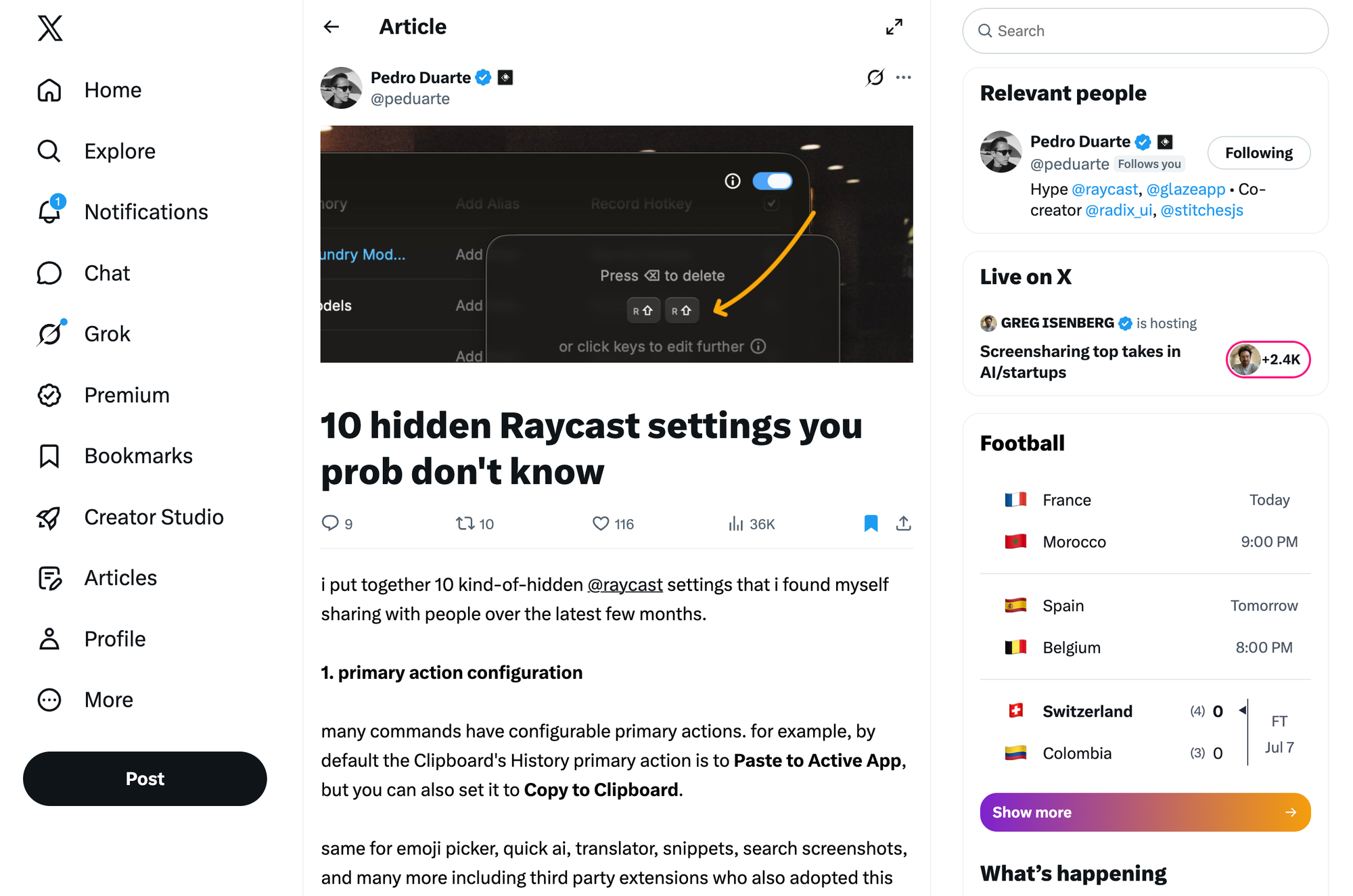
An X Article is X's long-form publishing format for Premium subscribers. Unlike a standard post or a "longer post," an Article supports a title, a cover image, headings, bold and italic text, blockquotes, lists, inline images and videos, and embedded posts — so it reads like a proper blog post living natively on X. Articles can run to roughly 15,000 words, far beyond the normal character limit.
Can you schedule X Articles natively on X?
No. As of 2026, X's Article composer only offers Publish now — there is no built-in option to schedule an Article for a future date, unlike regular posts, which can be scheduled natively on desktop. To schedule an X Article, you have to use a third-party scheduler that supports the Article format. Typefully is one of the few that does.
How to schedule an X Article with Typefully
Here's the full flow, start to finish:
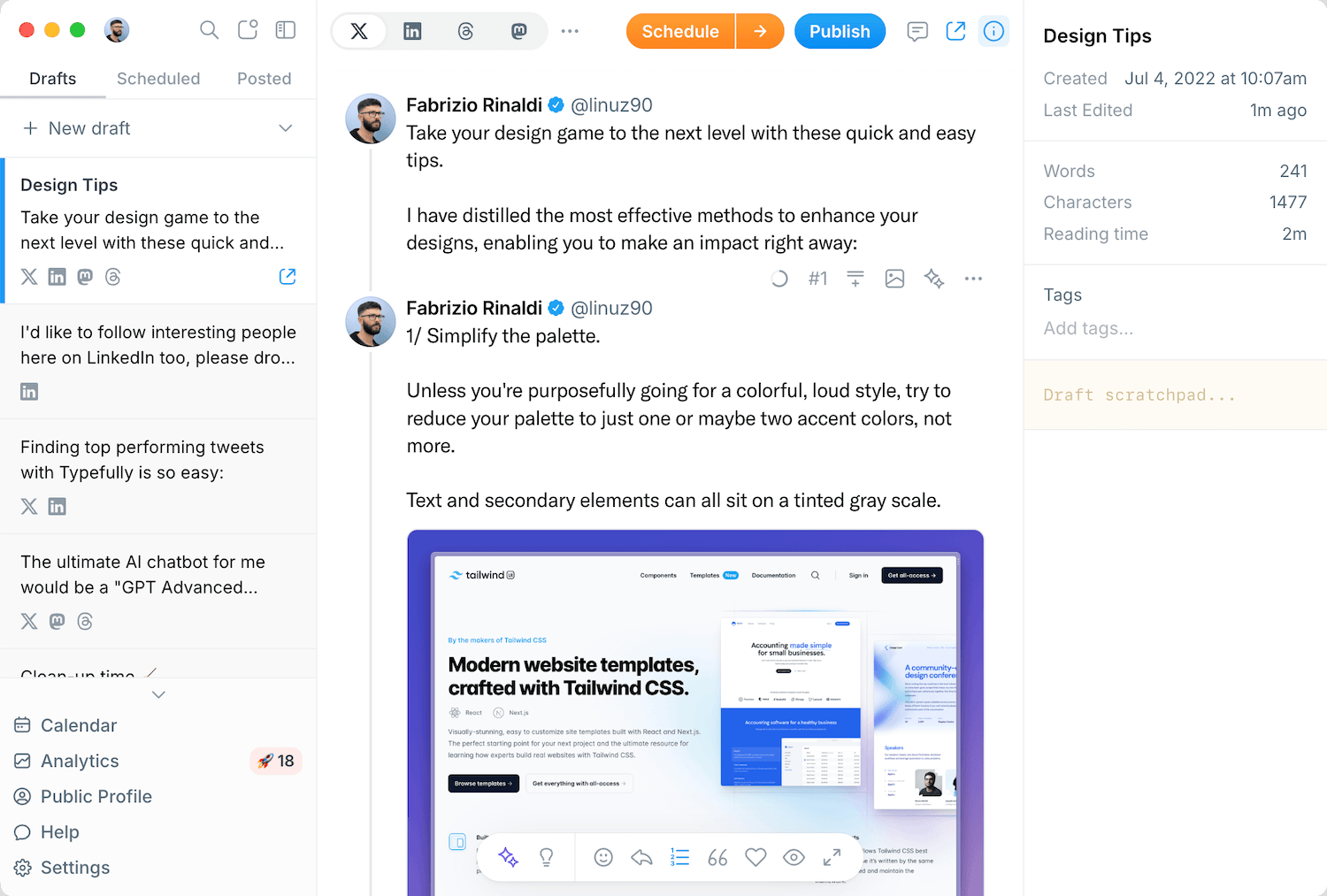
- Create a new Article draft. In Typefully, open the New draft menu, choose X (Twitter), then select Article. This opens a dedicated long-form editor that mirrors how your Article will look once published on X.
- Add your title and cover image. Every Article needs a title — it's the first thing readers see. Add an optional cover image and use the built-in crop tool to frame it exactly how you want.
- Write and format your content. Use headings, bold, italic, strikethrough, blockquotes, and bulleted or numbered lists. Drop in images, GIFs, and videos inline, or embed an existing X post or Article to enrich your piece.
- Pick your time. Instead of publishing, click Schedule and choose a specific date and time — or add it to your queue to drop it into your next free posting slot automatically.
- Adjust anytime. Your scheduled Article appears in your Queue and Calendar just like any other post. Drag it to a new slot, reschedule it, or edit the content right up until it goes live.
At the scheduled time, Typefully publishes the Article to X for you — no need to be at your desk.
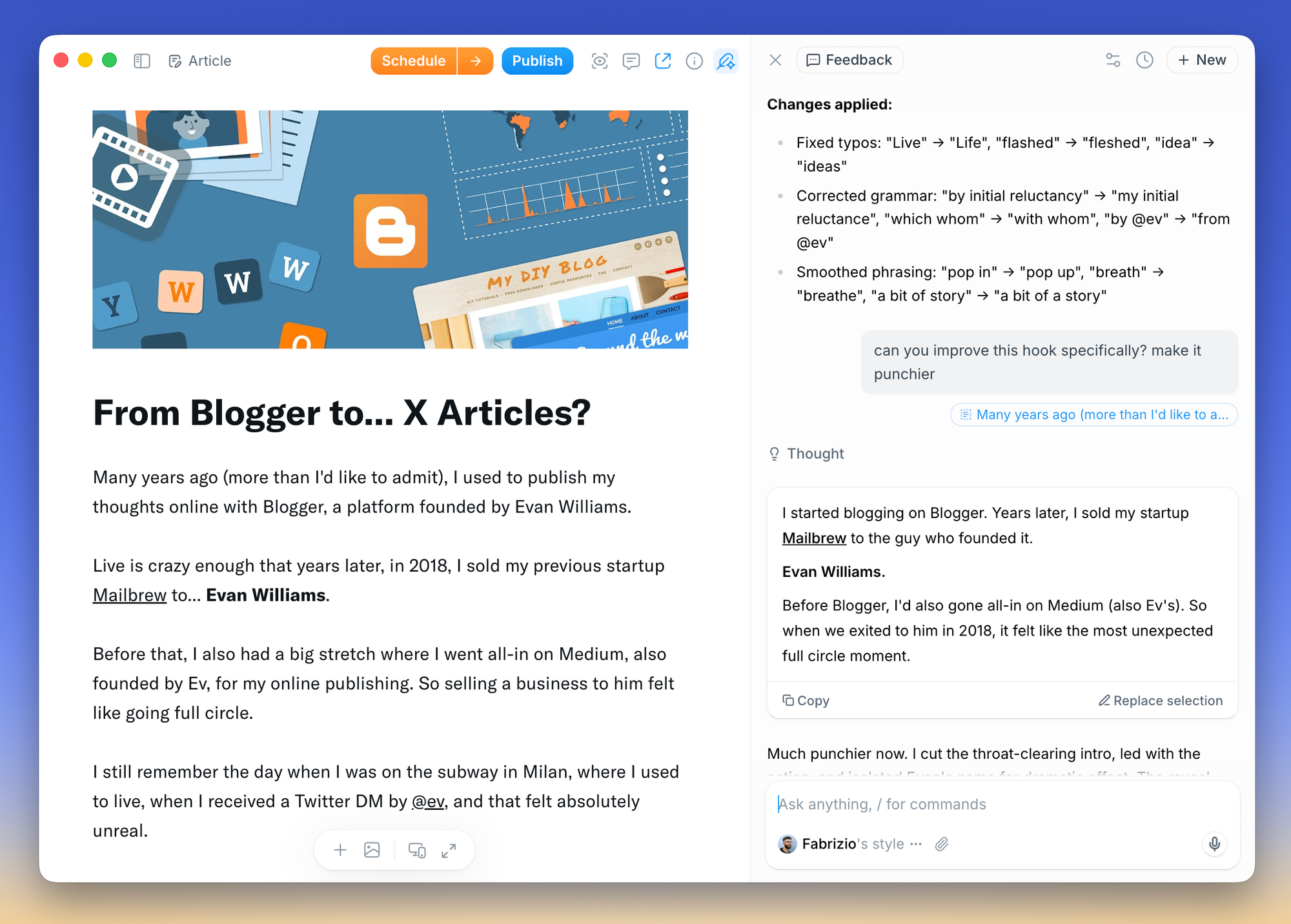
Schedule and publish X Articles, tweets, LinkedIn posts and more with Typefully.
Get started for freeJoin 10,000+ customers










What you need before you start
Before you can schedule an X Article, make sure you have:
- X Premium or Premium+ on your connected account. X Articles are a Premium feature. You can't publish or schedule one without it — this is X's requirement, not Typefully's.
- A connected X account in Typefully. If your X account isn't linked yet, Typefully will prompt you to connect it when you create the Article.
- A title and body. An Article can't be scheduled empty — you'll need at least a title and some content before the scheduling option unlocks.
Tips for writing X Articles worth scheduling
- Lead with a strong title and cover. These drive the click in-feed. Treat the title like a headline, not a filename.
- Use structure. Headings and lists make long-form scannable — X Articles support them natively, so use them.
- Embed for depth. Quote a relevant X post or Article directly inside your piece to add context and social proof.
- Batch your writing. The real payoff of scheduling is planning ahead. Write two or three Articles in one sitting and space them across the week from your queue.
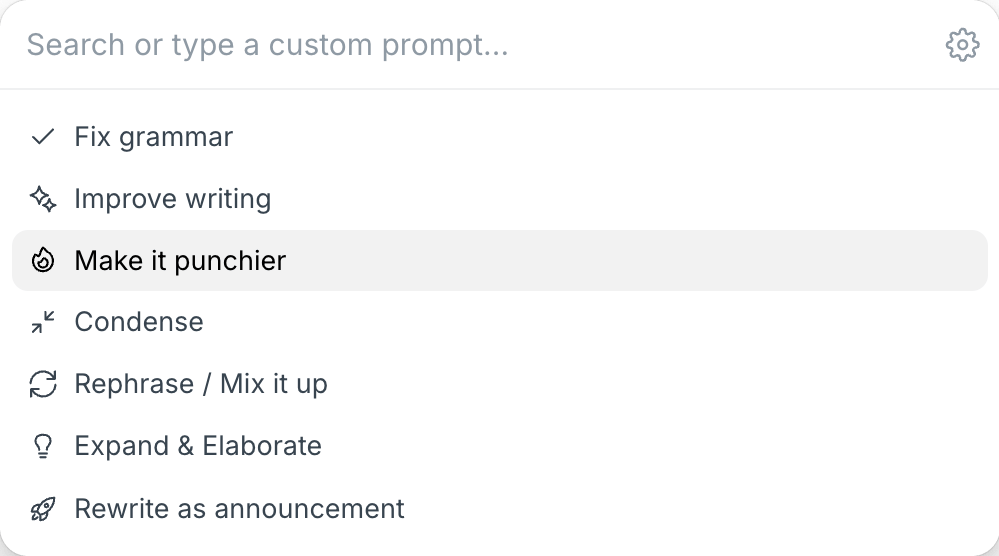
- Let AI help you start. In Typefully, you can generate a full X Article draft from a prompt with AI Chat, then edit and schedule it — a fast way to get from idea to scheduled post.
Build your online audience with Typefully, and easily cross-post on multiple platforms.
Try for freeFrequently asked questions
Can you schedule X Articles for free?
No. X Articles require an X Premium (or Premium+) subscription to publish, whether you post them instantly or schedule them through a tool like Typefully. The scheduling tool sits on top of your Premium account.
Does X let you schedule Articles natively?
No. X's Article editor only supports publishing immediately. Native scheduling on X is limited to regular posts, so you need a third-party scheduler to plan Articles in advance.
Can I edit a scheduled X Article before it publishes?
Yes. A scheduled Article stays fully editable in Typefully until it goes live — you can rewrite content, swap the cover image, or reschedule it to a different time.
What formatting do X Articles support?
Titles, cover images, headings, bold, italic, strikethrough, blockquotes, bulleted and numbered lists, inline images, GIFs and videos, and embedded X posts and Articles.
How long can an X Article be?
Articles can run to roughly 100,000 characters — about 15,000 words — far more than a standard post or longer post.
Start scheduling your X Articles
X gave you long-form publishing but left out the one thing serious creators need: the ability to plan ahead. With Typefully, you can write your Article, format it beautifully, and schedule it for the exact moment your audience is most active — then manage it right alongside your posts and threads in one queue.


Discover
Join 10,000+ customers to grow on 𝕏, LinkedIn, Bluesky and Threads.
Level up your content with AI and boost engagement 🚀
Join 10,000+ customers