Ahoi!
Who's blenimating this weekend?
Get started with these tips below.
👇
Find a reference first.
Or record yourself, or ask someone else.
Just find reference.
For me it's this one by @jagar001:
youtu.be/gL1g6dntDC4
(sorry, i didn't found the tweet anymore :( )
👇
Ok. Great!
You found reference. Now step 2.
Editing.
No - you don't need Adobe Premiere, or Davinci Resolve or some other top notch editing software.
We stay home and just use:
Blender Video Sequence Editor.
👇
SHIFT + F8 will bring it up in your active panel.
You can also switch the entire layout, like in the image.
1) Click the plus symbol in the tabs section.
2) Hit Video Editing.
3) Hit Video Editing again.
Nice. Now you're set for editing. :)
👇
You'll now see:
sequencer area at the bottom.
previewer in top right panel.
file browser in top left panel.
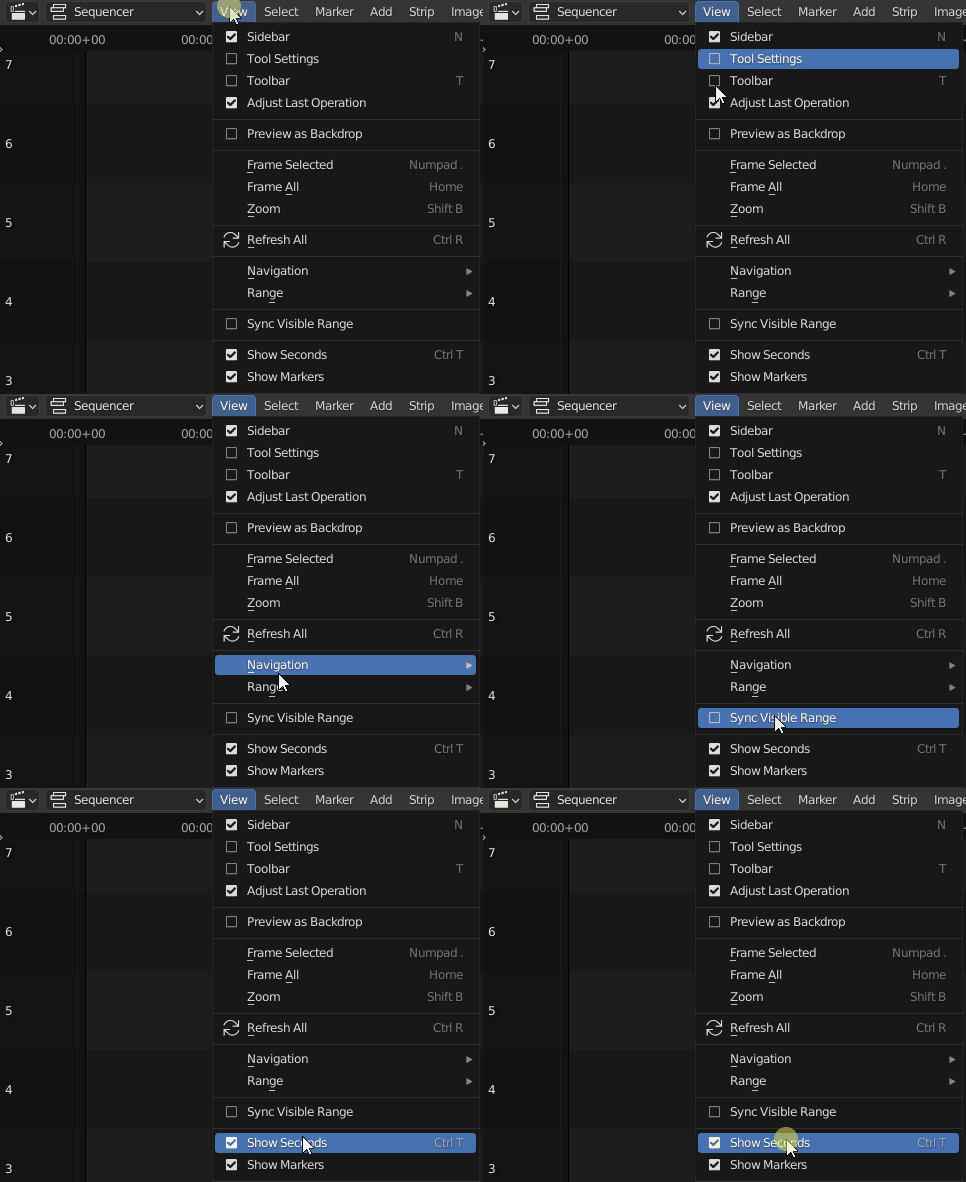
Since we're blenimators, let's change display from seconds to frames.
👇
Drag video, or image sequence from the file browser to the sequencer area.
Or press SHIFT + A there to bring up the menu and choose "Movie" or "Image Sequence". Both will result in your first strip here (a video might have an audio strip as well).
👇
G - for moving strips.
X - delete strips.
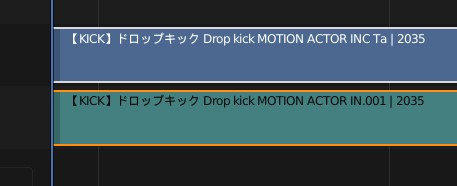
K - for 'cutting' strips. This does duplicate the strip in the background.
SHIFT K - This is more the cut function you might know from other softwares.
SHIFT S - Snap strip to cursor.
👇
Try turning on 'Offsets' in the overlay options in top right corner.
It shows you what's happening to your strip when cutting with K or SHIFT K.
(click on the images!)
👇
When clicking (and holding) with right mouse button on the front or end bar in your strip, you can adjust the strips duration.
Alternatively, right click them and press G.
👇
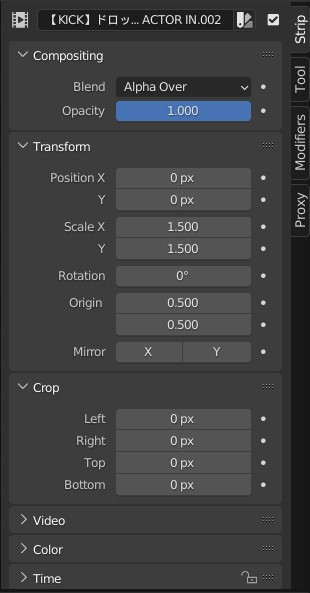
The N panel on the right, displays some more options to edit your strips.
Here you can change the strips position, scale, rotation, mirror or crop it etc. Basically it contains all options\adjustments to your strip.
👇
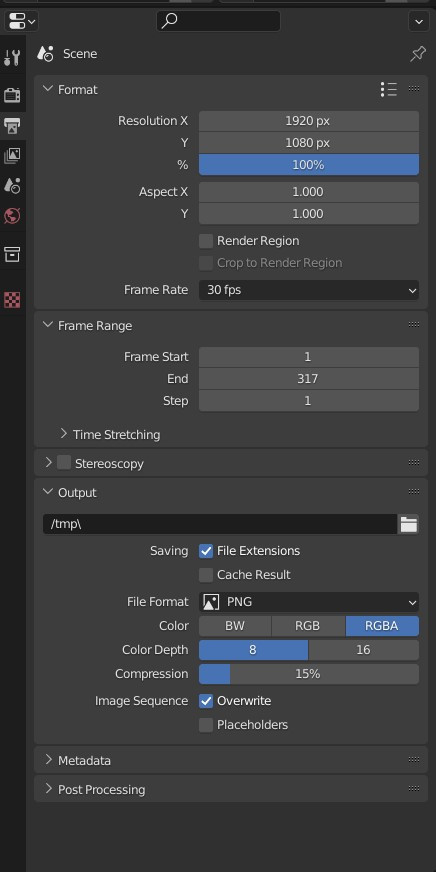
Once happy with your edits, switch to the properties panel (SHIFT F12) or, if you're using the Video Editing layout, in the top right area.
Adjust the frame rate, the frame range and the output path.
Basically you're setting up how you want to save your video.
👇
Awesome! 🤘🏼
Let's render your edited video.
Nothing easier than that.
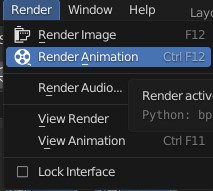
Just click 'Render' and 'Render Animation' (in the Blender menu bar) or hit CTRL F12.
Grab a coffe and enjoy watching Blender working.
👇
Blenimator
@blenimator
Senior Gameplay Animator working on your next game experience! Learning Blender at night while sharing insights, tips 'n tricks and progress.