A complete guide to the du command in Linux 🐧↓
The du command, which stands for "disk usage," returns the estimated amount of disk space used by specified files or directories.
The du command is extremely useful for locating files and directories that are taking up a lot of disk space on your system.
How to Use the du command
The syntax for using this command is as follows:
$ du [OPTION]... [FILE]...
If you provide a FILE as a directory, du will display a summary of disk usage for each file and subdirectory in that directory: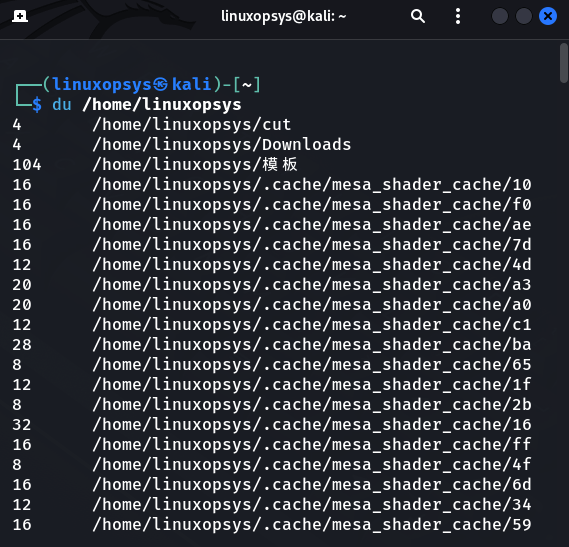
If you don't specify any FILE du will display disk usage of the current working directory.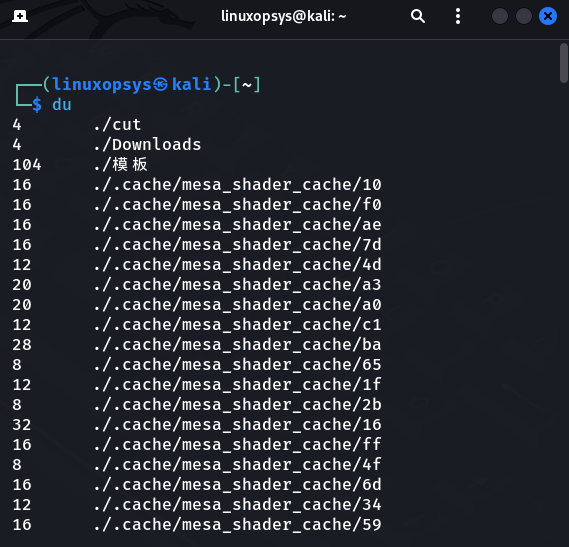
The du command also allows you to pass multiple files and directories as arguments: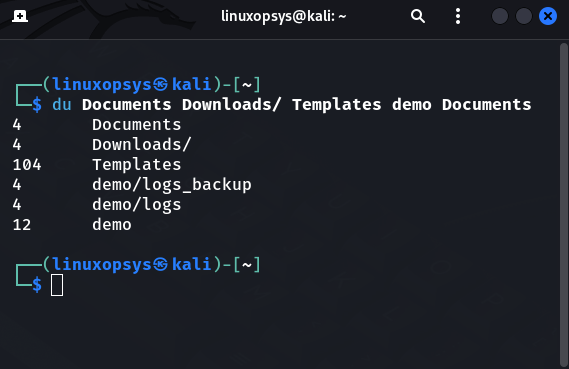
The du command options
The du command has several options that can be used to control how it displays output and what is included in the output.
I'll only go over the most commonly used ones.
The -h option
In most cases, you'd want to show only the amount of space occupied by the specified directory in a human-readable format. To accomplish this, use the -h option.
For instance, to determine the total size of the /home/linuxopsys directory and all of its subdirectories, use the following command: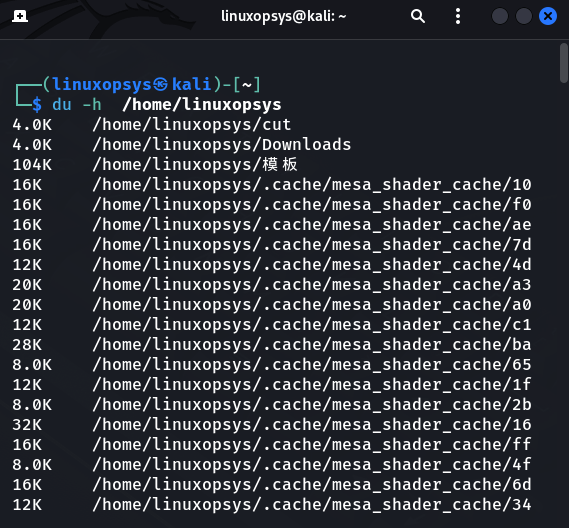
The -a (--all) option
This useful option does exactly what you'd expect. It displays the sizes of all files, not just directories. For convenience, the -a flag is frequently combined with the -h flag.
Notice, Individual file sizes are listed alongside the directories.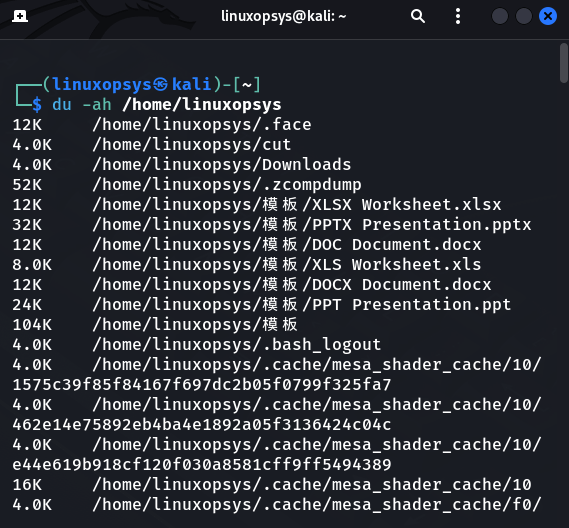
The -s(--summarize) option
The -s option is very important if you only want a summary of the total size of the specified directory, and not for subdirectories.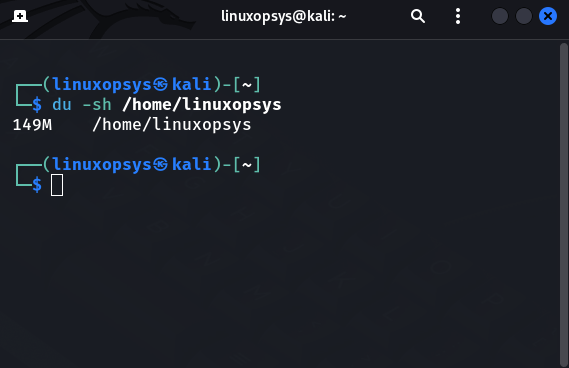
The -c(--total) option
Another great option is the -c option, this option instructs du to produce a grand total. This is useful when you need to calculate the total size of two or more directories: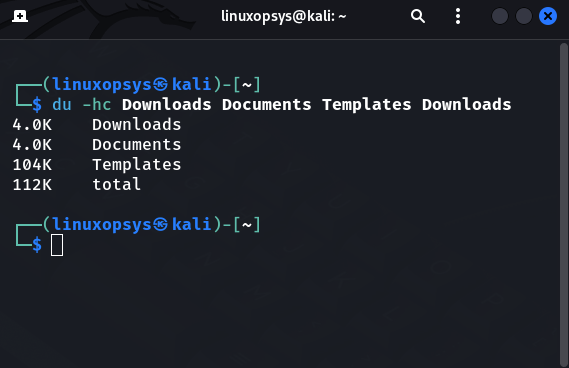
--max-depth option
The —max-depth option is useful if you only want to see the disk usage of n-level subdirectories. For example, to obtain a report of the second-level directories, you can use the following command: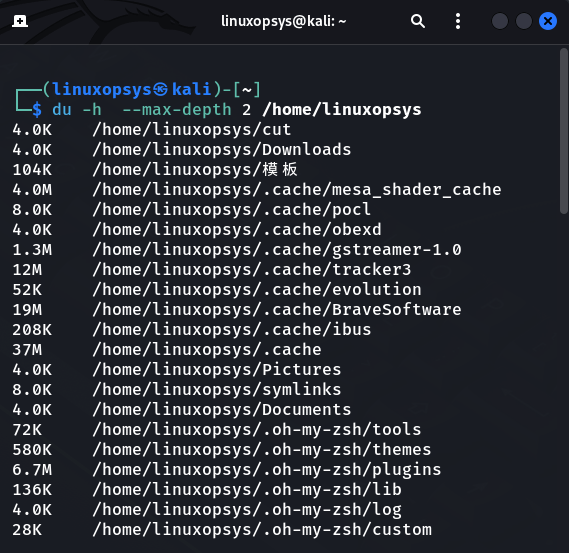
That's a warp!
You should now have a better idea of how beneficial the du utility can be. There are numerous flags that I did not cover in this thread, but you can find all of the information on the command's manual page. Simply type 'man du' on terminal to get to the manpage.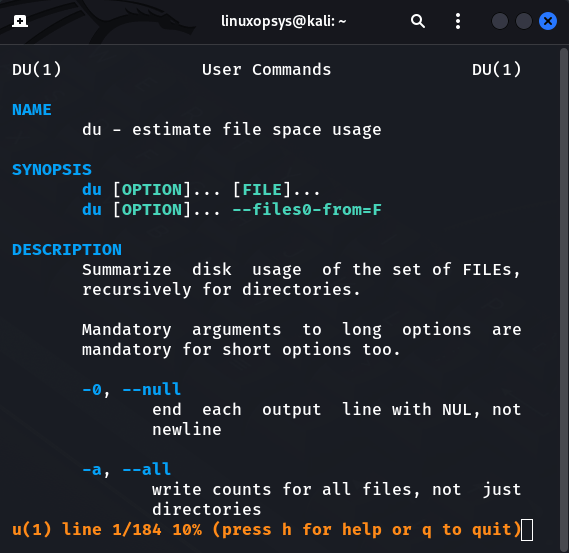
End of this thread.
Visit @linuxopsys and check out more exciting Linux content. 🐧😎

Linuxopsys
@linuxopsys
Learn something new daily from our daily infographic tweets. What to expect to learn from us: Linux🐧, Sysadmin💻, and DevOps.