20 Lesser known useful Linux commands (with explanation + examples):
1. nl command
The nl command in linux stands for number lines. If you ever had a large text document and needed to add lines to it, the nl command is your best friend.
Rather than going through the time-consuming process of manually numbering each line , you can simply use nl from the command line and be done in a matter of seconds.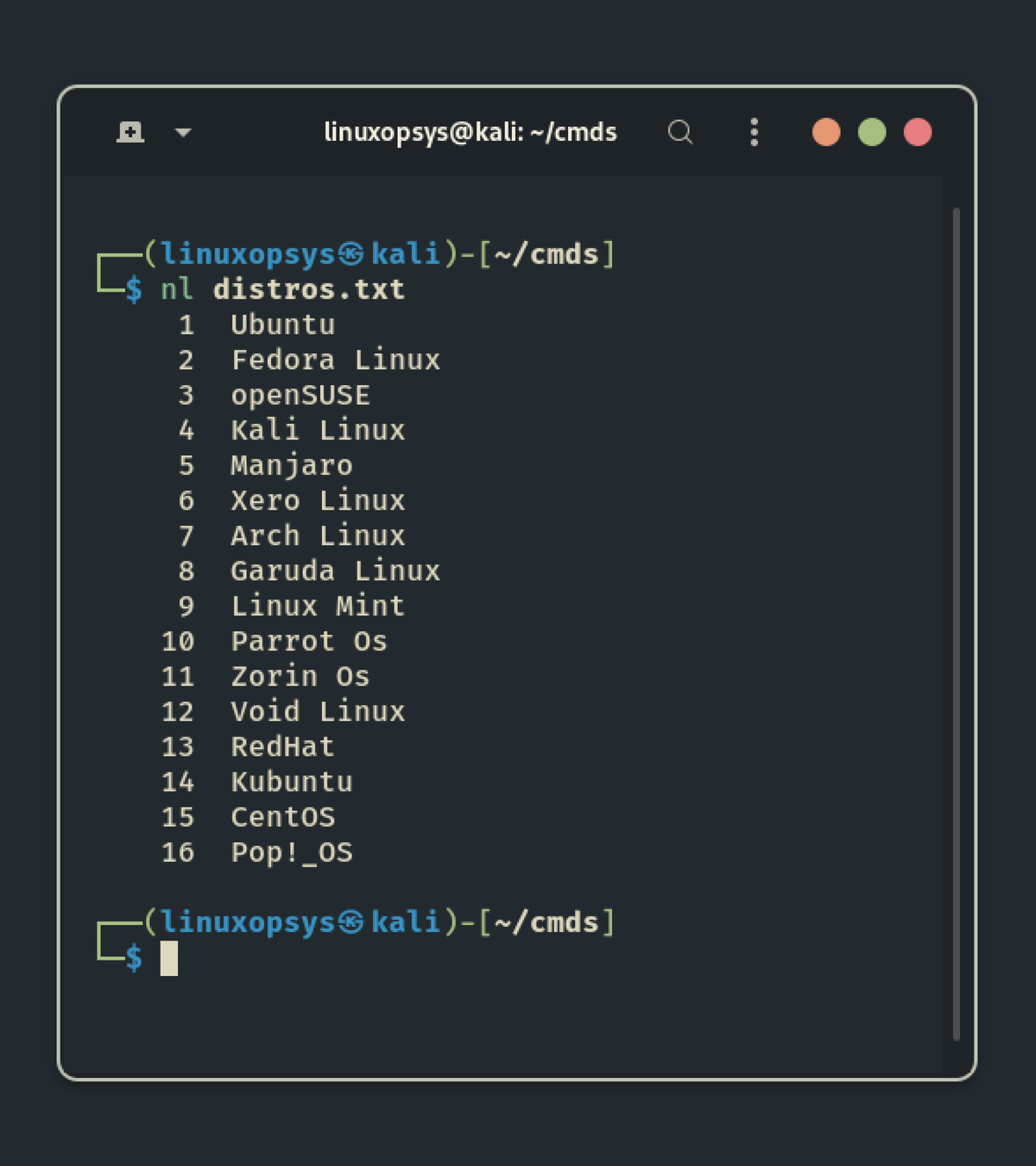
2. pstree
This command displays all of the processes that are currently running, along with their associated child processes, in a tree-like format similar to the output of the 'tree' command: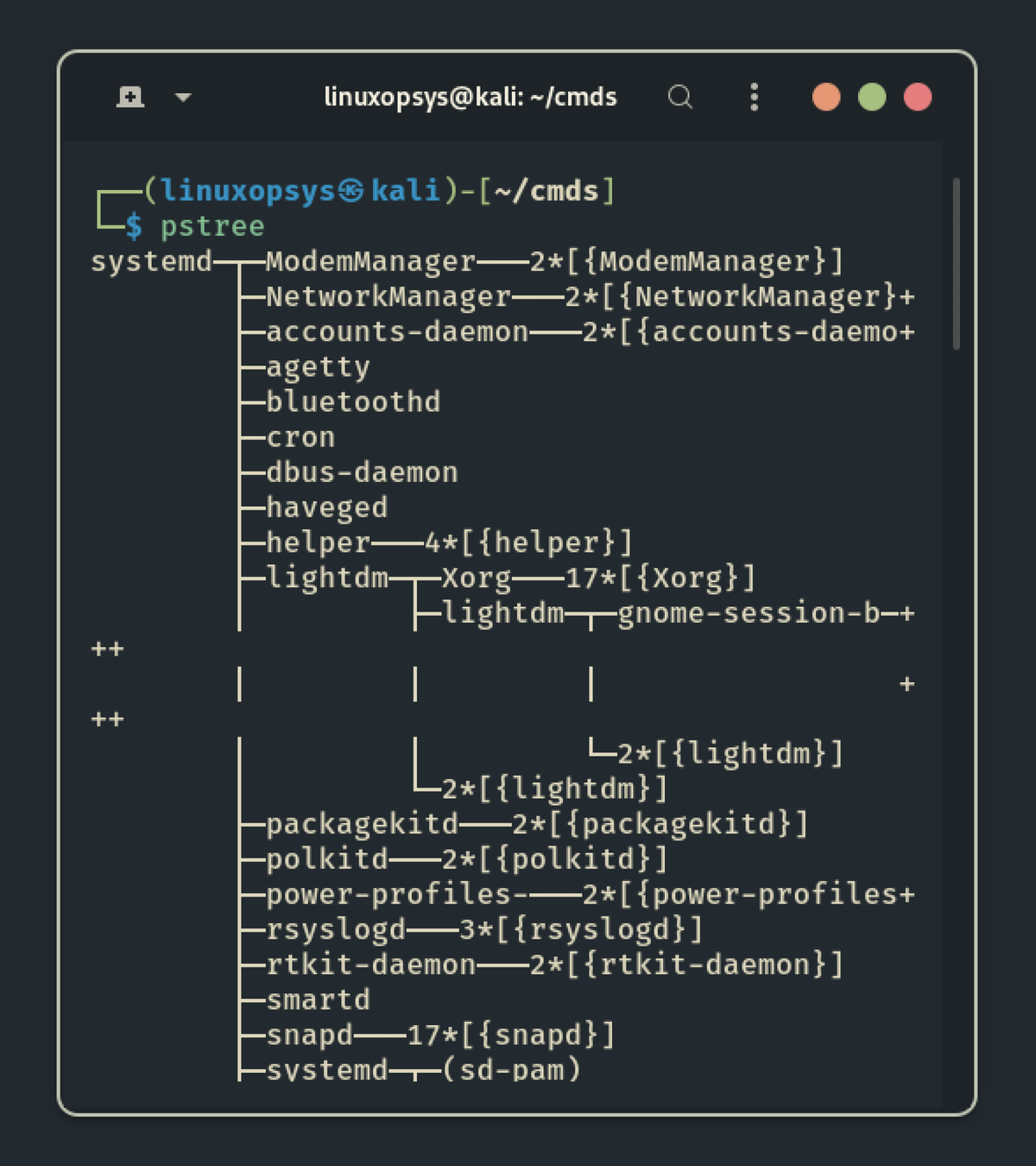
3. lsd
lsd is the next-generation ls command. Try lsd instead of ls to list files in a directory. This project is a rewrite of GNU ls with many new features such as colors, icons, a tree-view, more formatting options, and so on: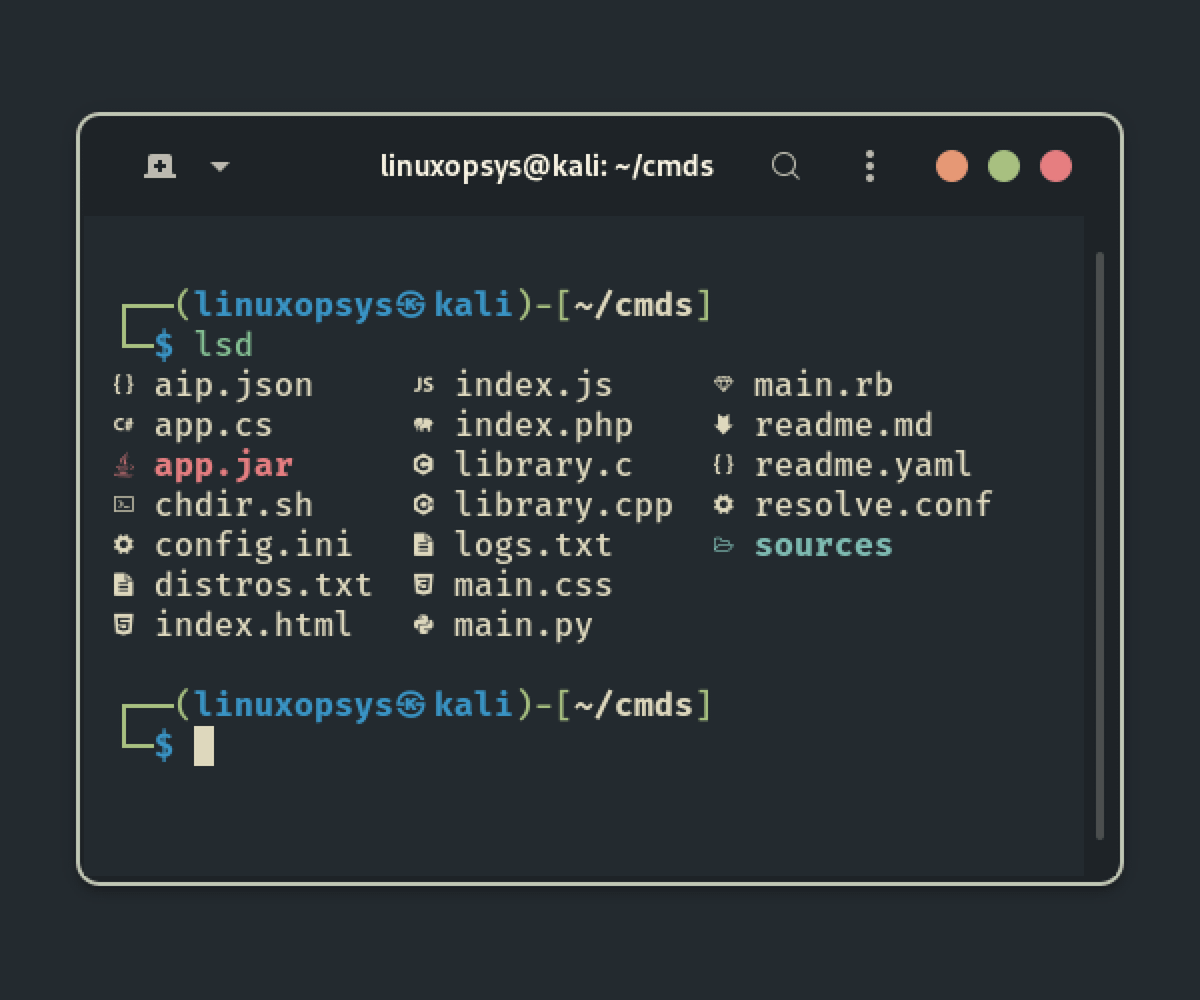
4. stat
In Linux, the stat command displays file or filesystem status information. The stat displays a wealth of information about the file passed as an argument.
The stat command displays the following infomation about a file:
- File Size
- Blocks
- Access Permission
- Date and Time of Last Access, Modify, Change, and so on:
$ stat distros.txt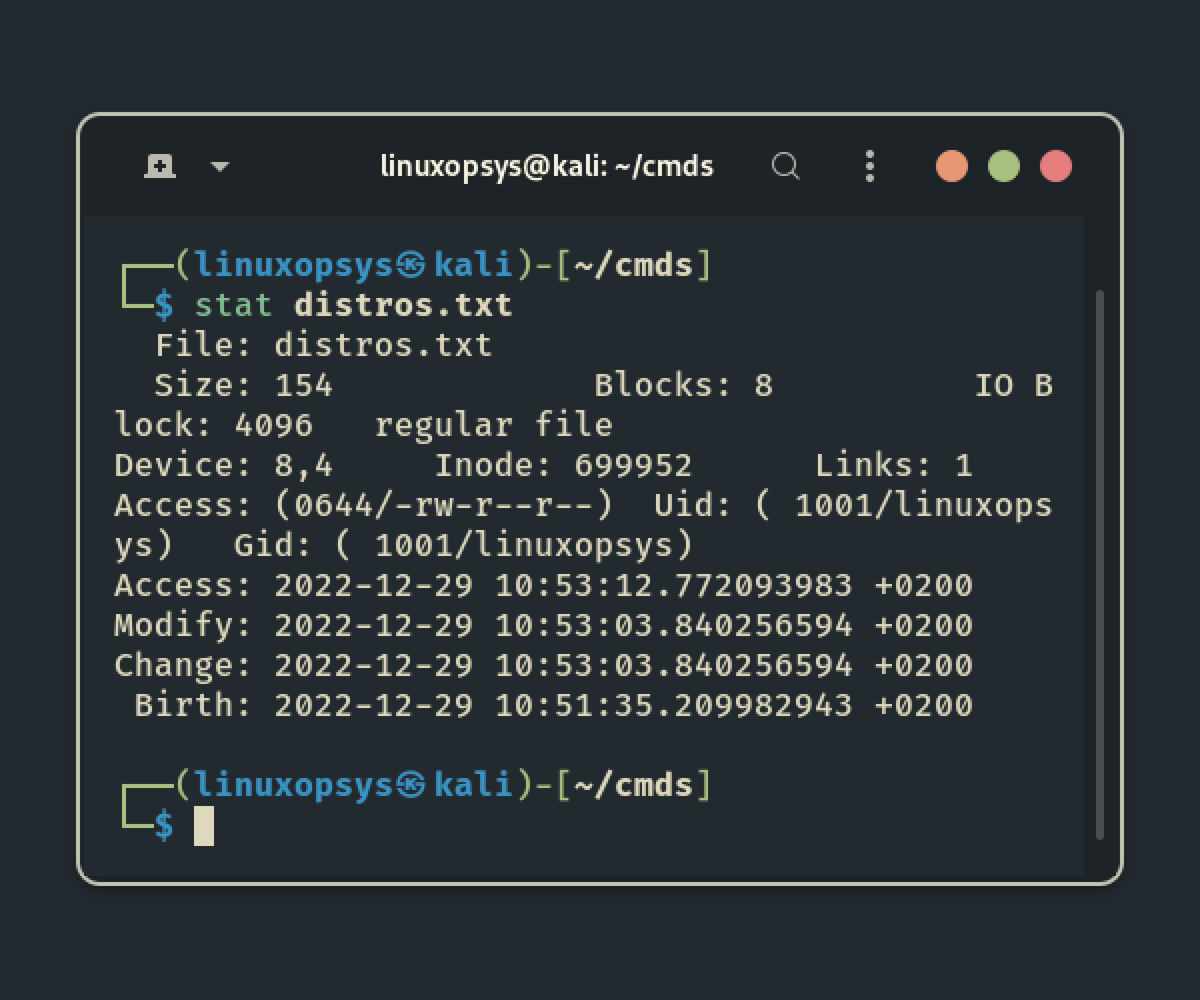
5. lsb_release
provides certain LSB (Linux Standard Base) and distribution-specific information. If this package is not installed on your system you may need to install it first using your distro package manager.
$ lsb_release -a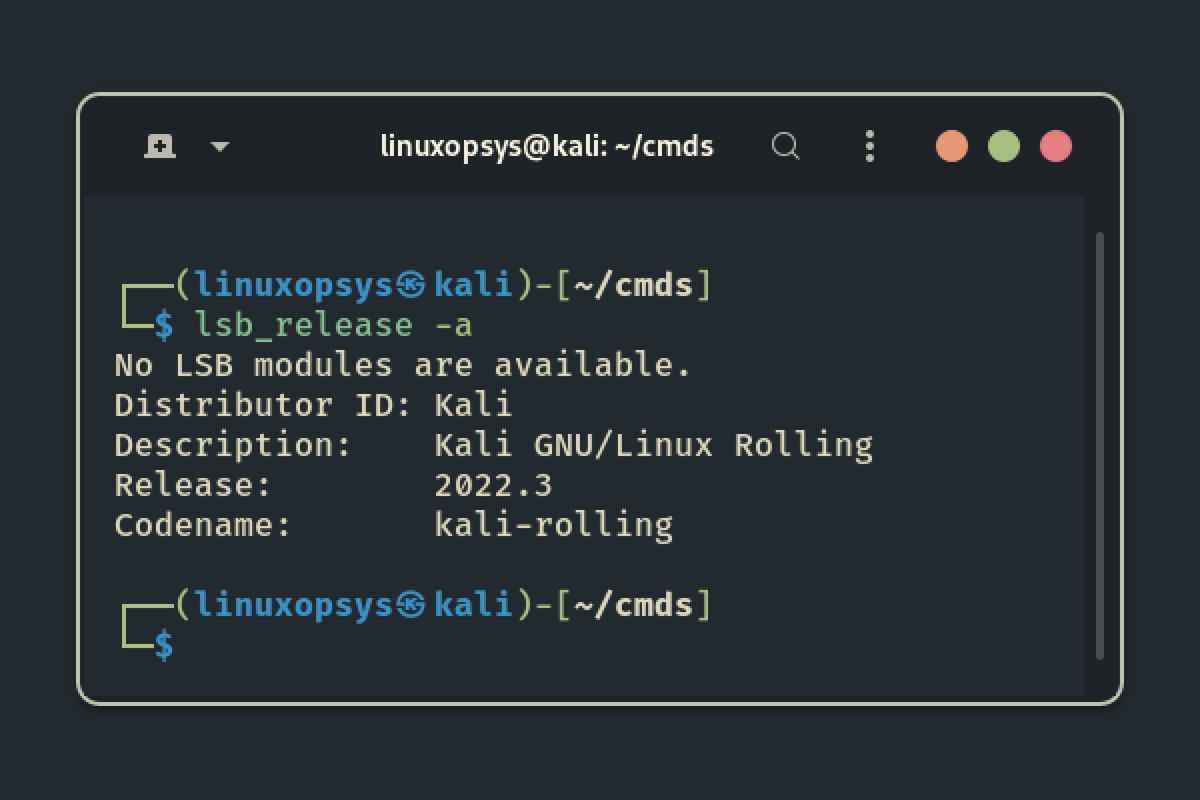
6. ss
Unlike the deprecated netstat command, the'ss' command is mostly used by sysadmins to dump network socket statics and display the information in a simpler, faster, and human readable format.
It has the ability to display more TCP and state information than other tools.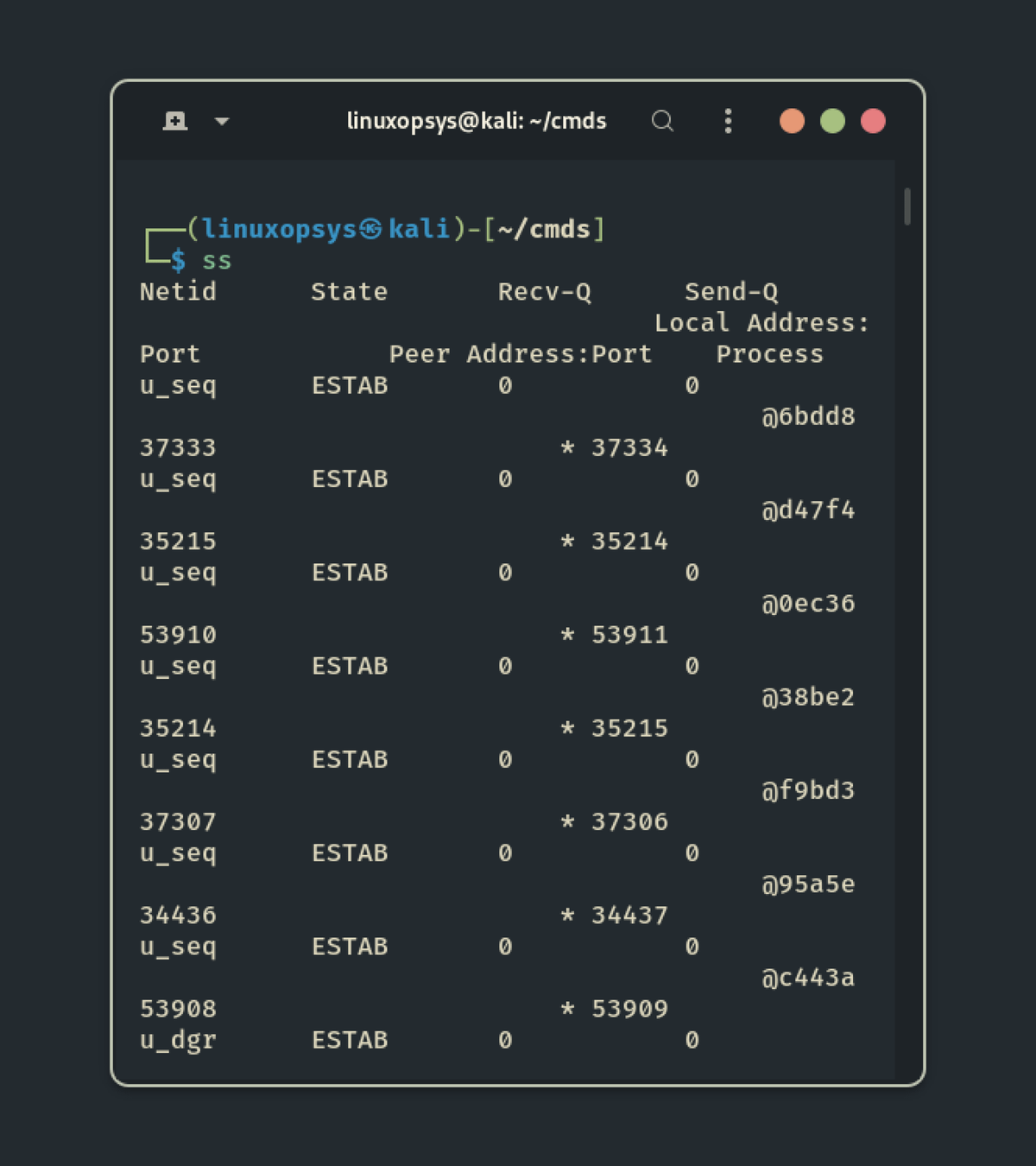
7. last
When managing a multiuser system, you'll frequently need to know who, when, and from where people are logging in.
last is a command-line utility that displays information about system users' most recent login sessions.
It is extremely useful when tracking user activity or investigating a possible security breach:
$ last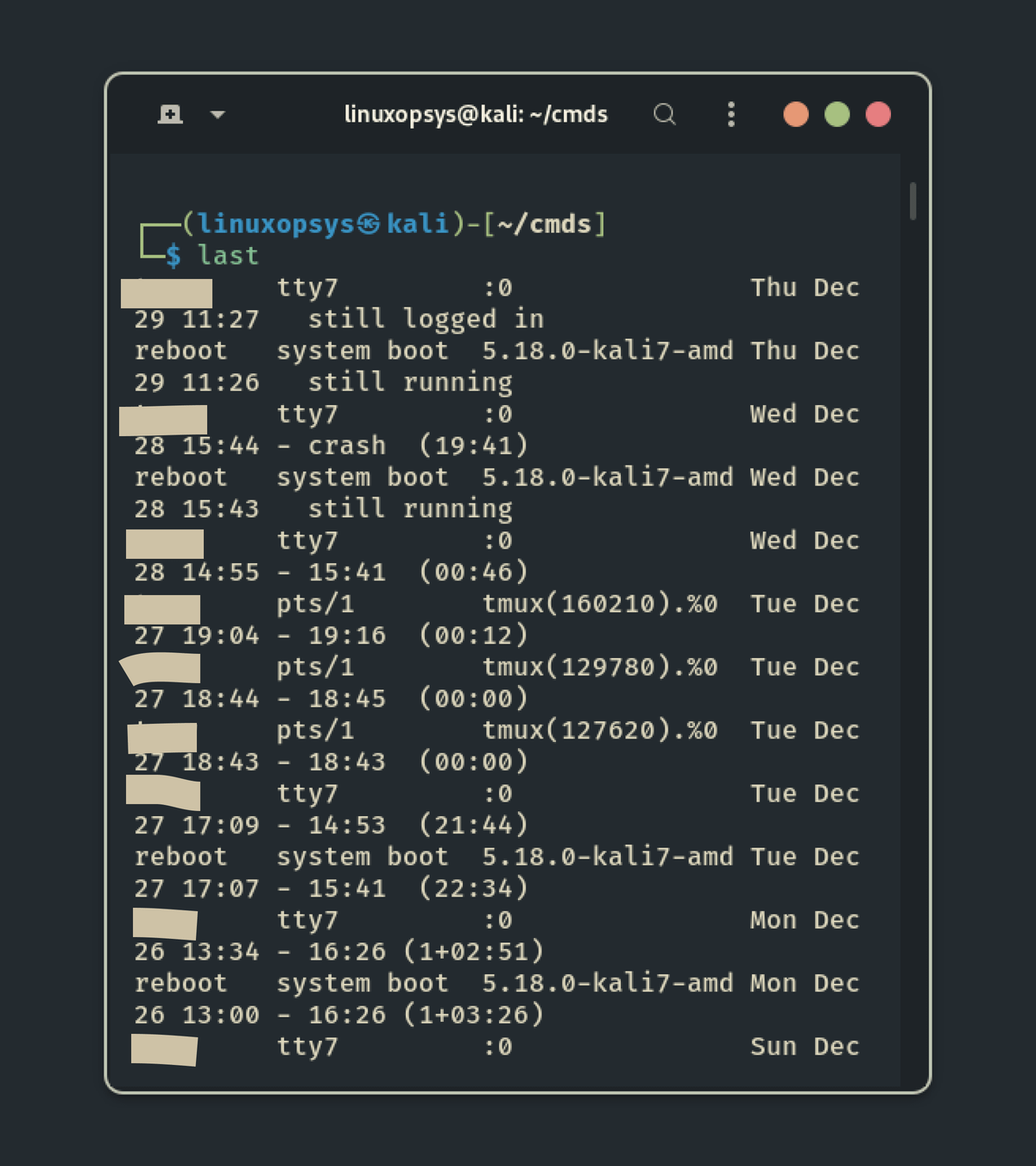
8. exa
exa is another cool replacement for the venerable file-listing command-line program ls that comes with Unix and Linux operating systems, adding features and improving defaults. It uses colors to differentiate between file types and metadata.
It is familiar with symlinks, extended attributes, and Git. It's also small, fast, and only has one binary.
Exa attempts to be a more feature-rich, user-friendly version of ls by deliberately making some decisions differently.
Here is an example of using exa to display a tree of files, three levels deep, as well as each file’s metadata.
$ exa --long --tree --level=3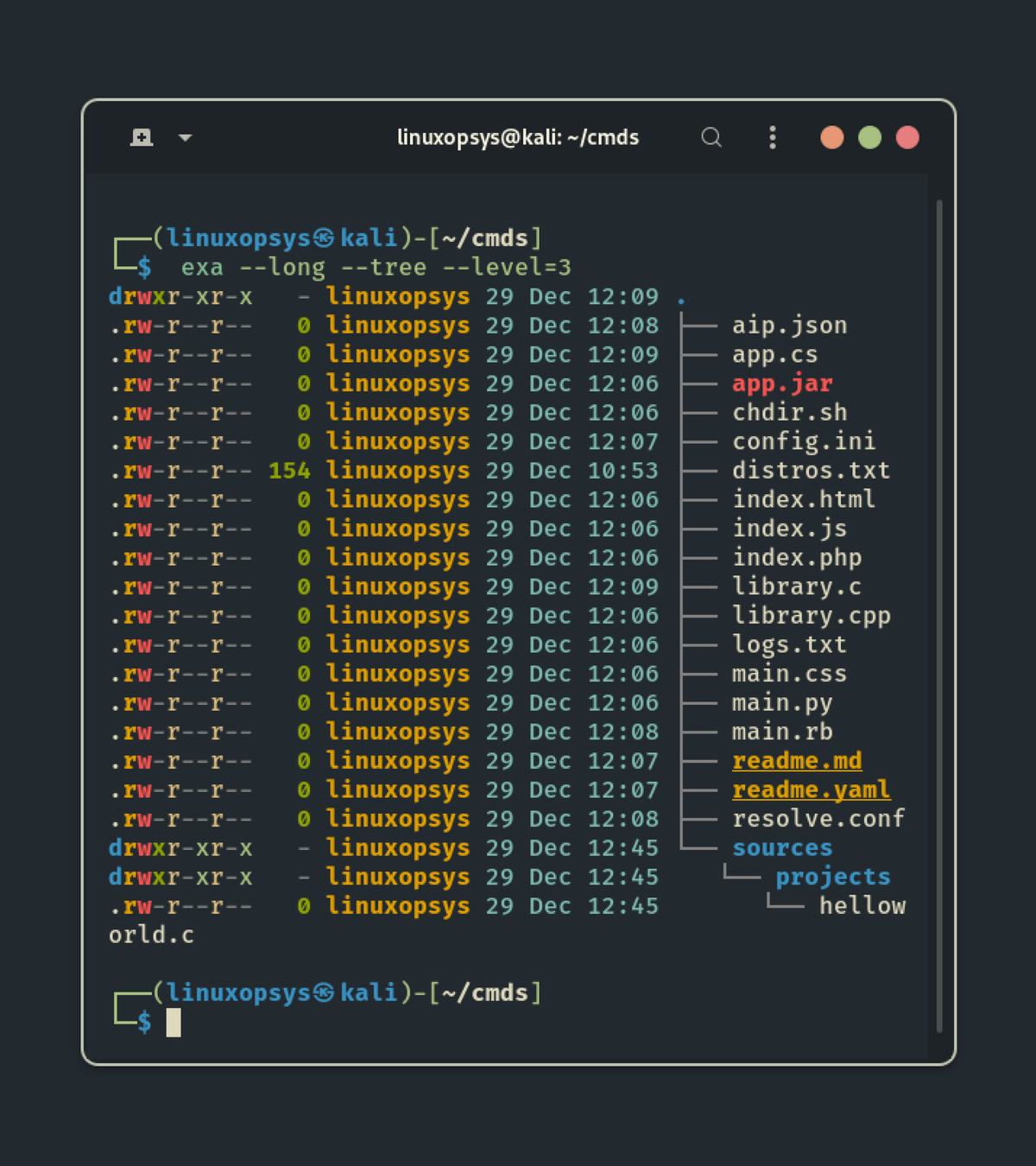
9. nc -zv localhost <port>
You can make use of netcat to check which ports are open on your system: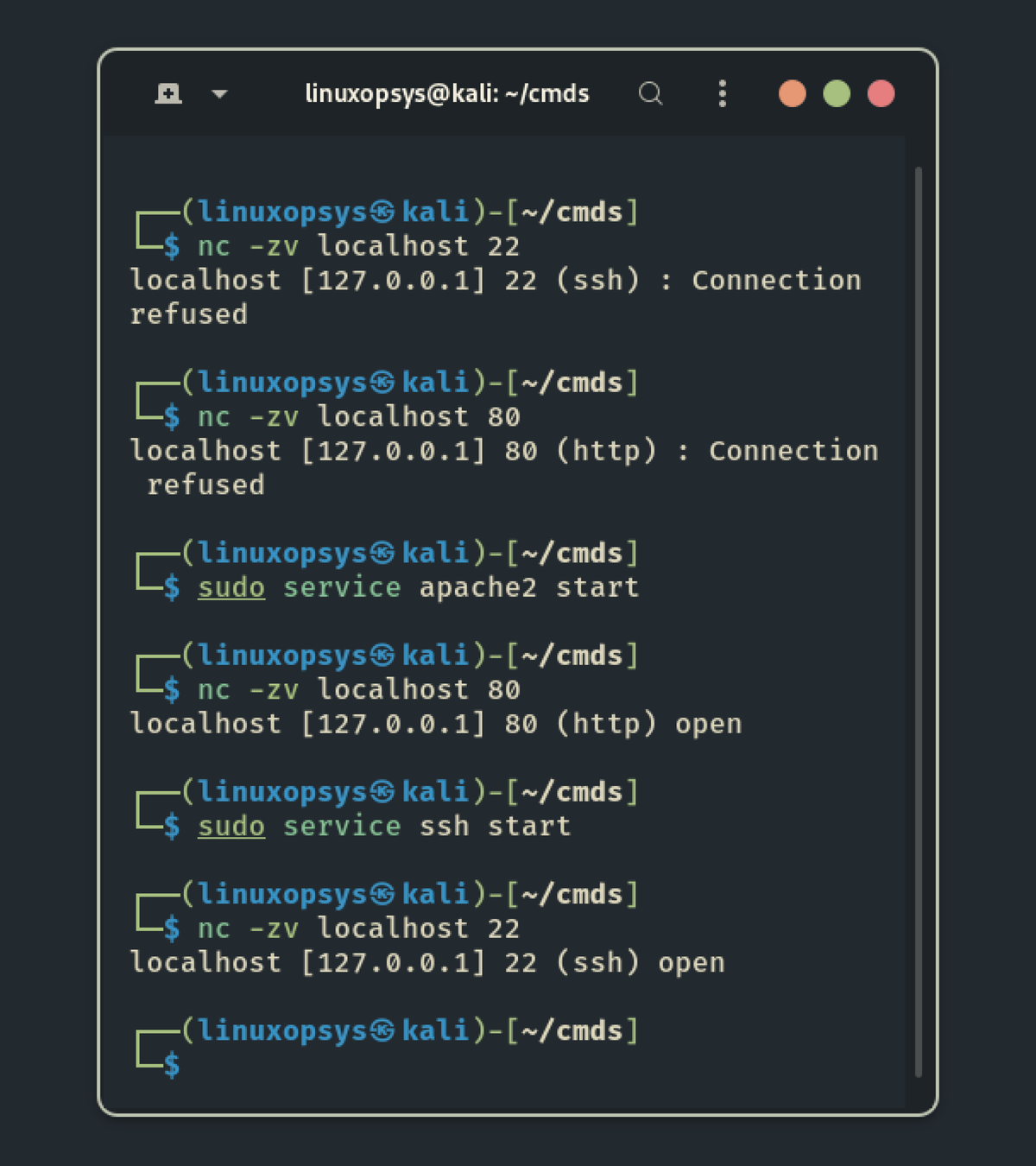
10. > file.txt
This command clears the contents of a file without the need to delete and recreate the file. This command is very useful in scripting when we need to log data on the same file repeatedly.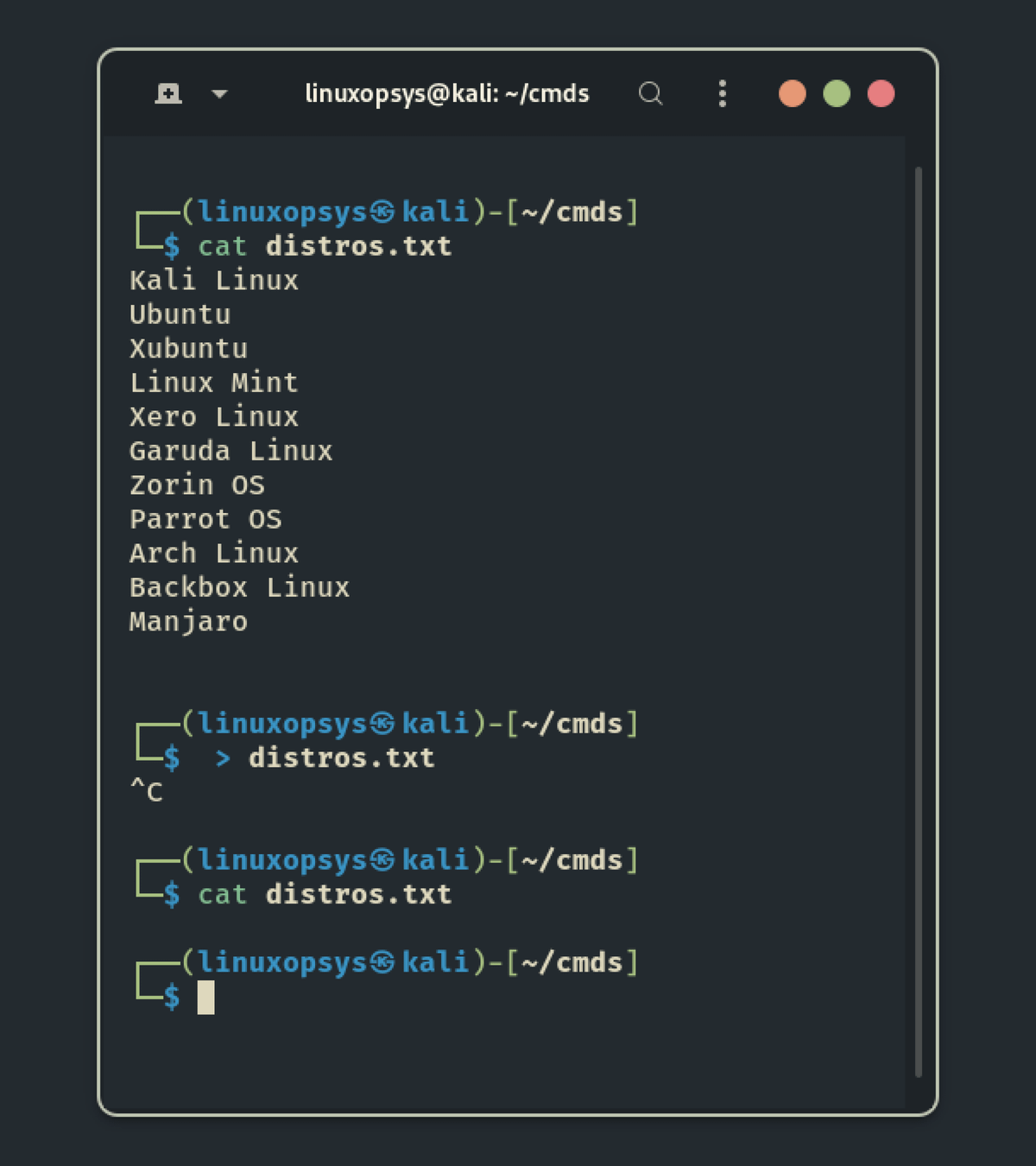
11. tac
Similar to the cat command, the tac command concatenate and print files contents in reverse order. You can tell from the name that this command is the reverse version of the popular cat command.
$ tac distros.txt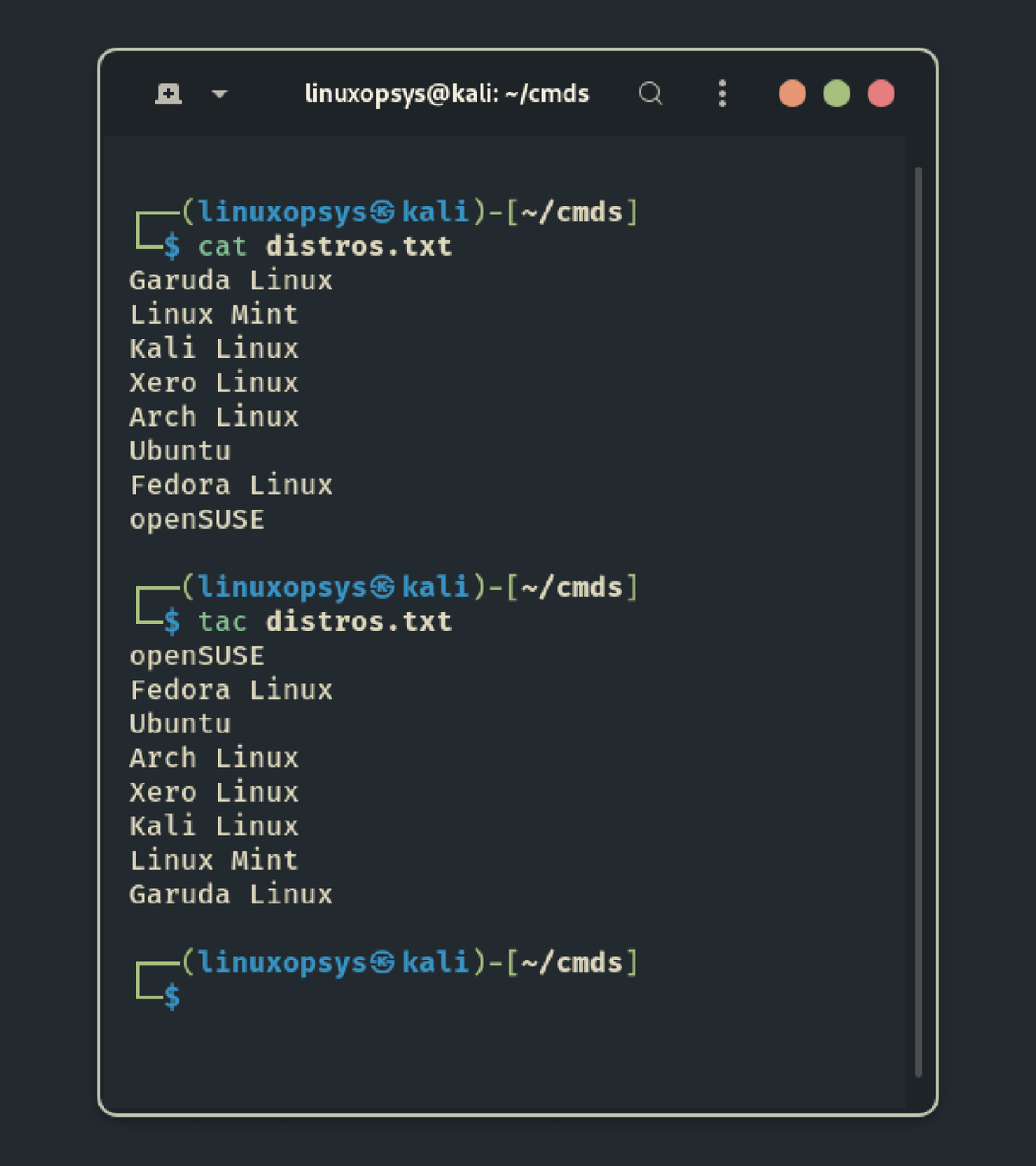
<space> command
Every command you type in the terminal is saved in the history and can be retrieved using the history command.
What if you don't want it to be placed in history for security reasons? Yes, you can do it, and it is very simple. Simply enter one or more white spaces before entering a command in the terminal, and your command will not be recorded.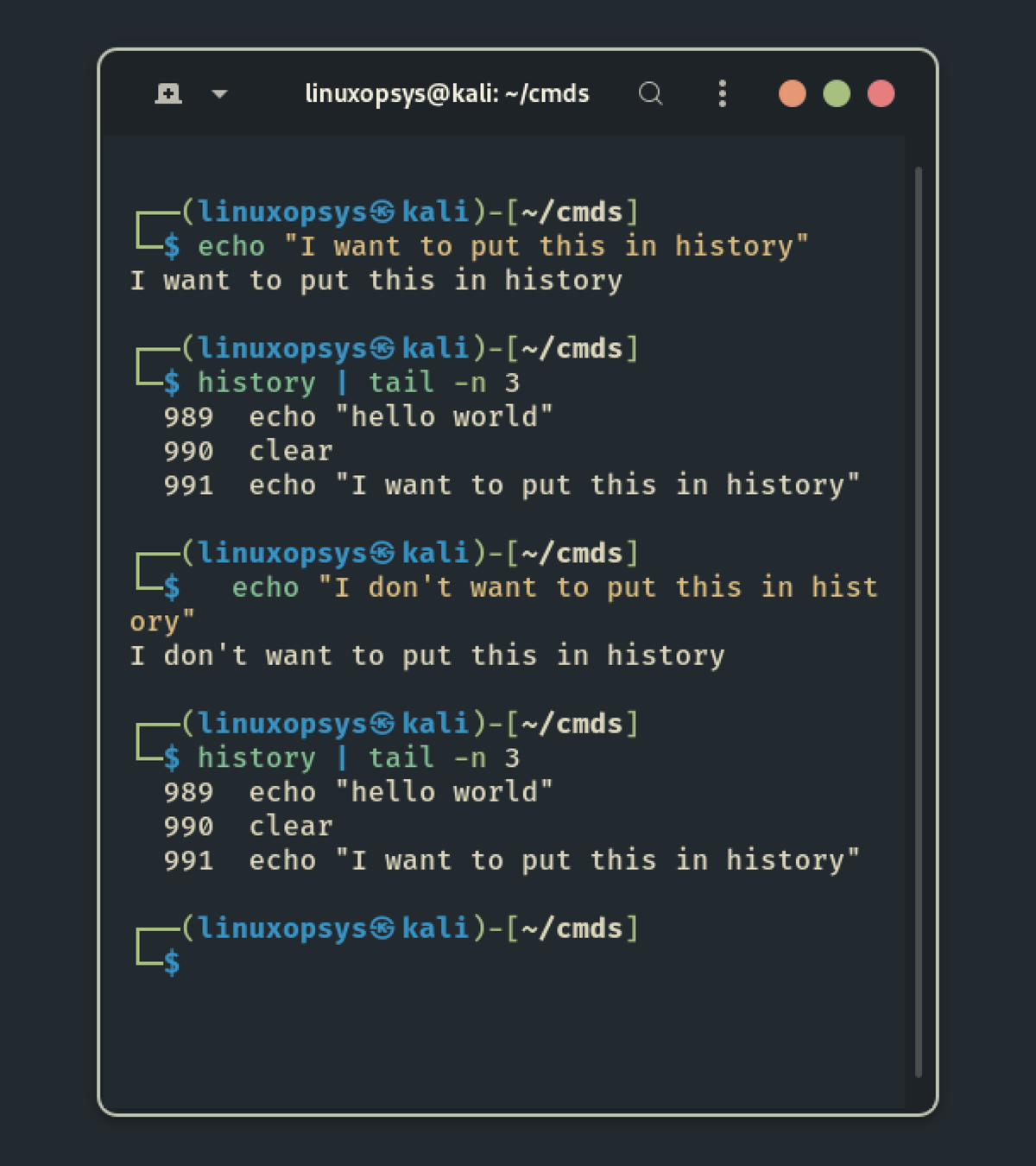
14. batcat
Instead of using the cat command to view source code files, try the batcat command, which is a modern version of cat that includes syntax highlighting for many programming languages out of the box.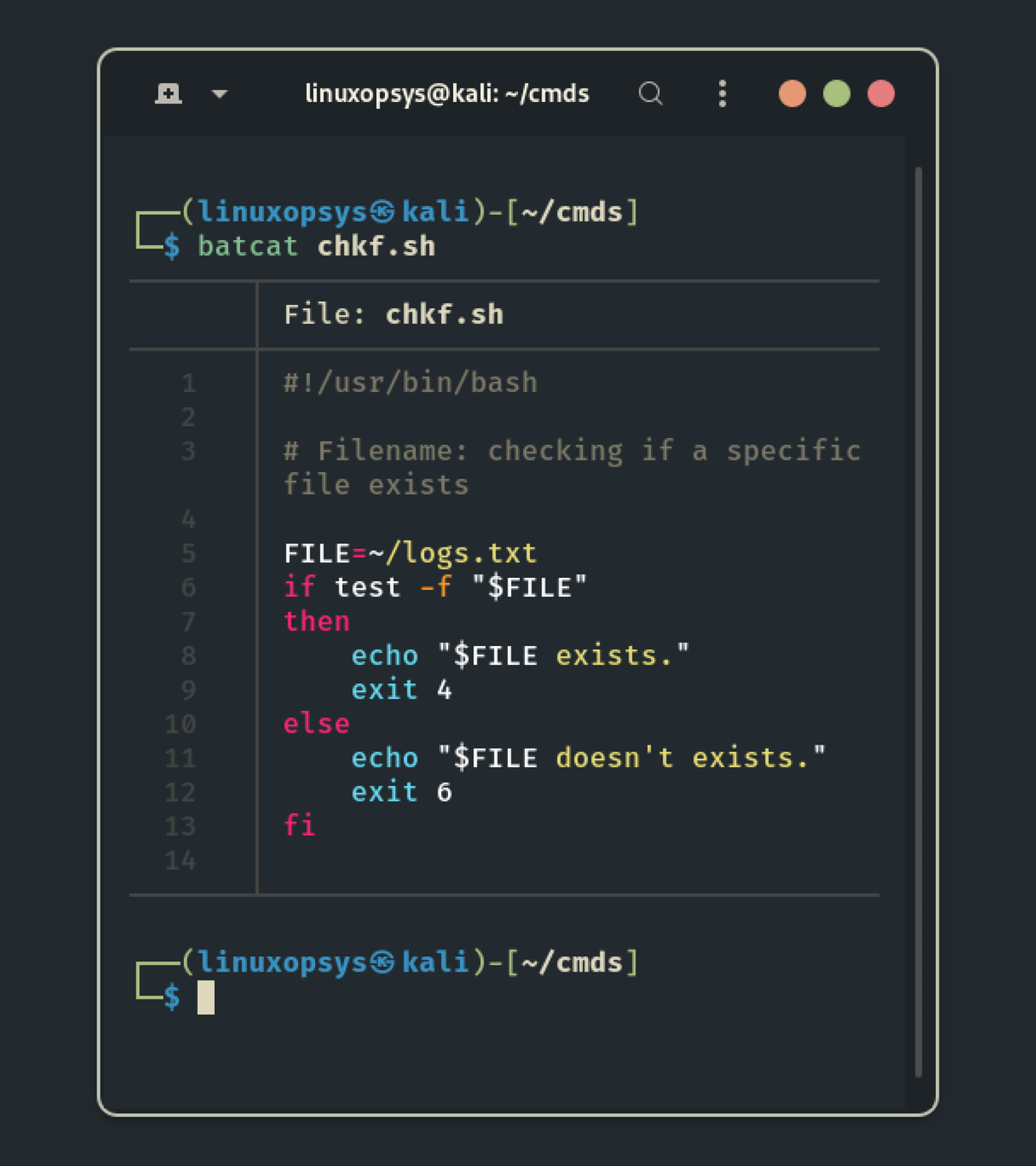
15. ^foor^bar
You can use the ^foor^bar command to edit the command you ran previously and execute it again. This is very useful if want to correcting typos or mistakes on previous commands:
$ sodu mkdir demo
$ ^sodu^sudo
This will replace "sodu" with "sudo" and re-rerun the command.
16. nohup
If you run the program in a terminal, it will be terminated as soon as your terminal session ends. To avoid this and keep the program running, use the nohup command, which stands for "no hangup."
For example, to compress large amount of data using tar command and ensure that the compression continues even if you close the terminal window accidentally, use the following command:
$ nohup tar -cf archive.tar logs.txt app.jar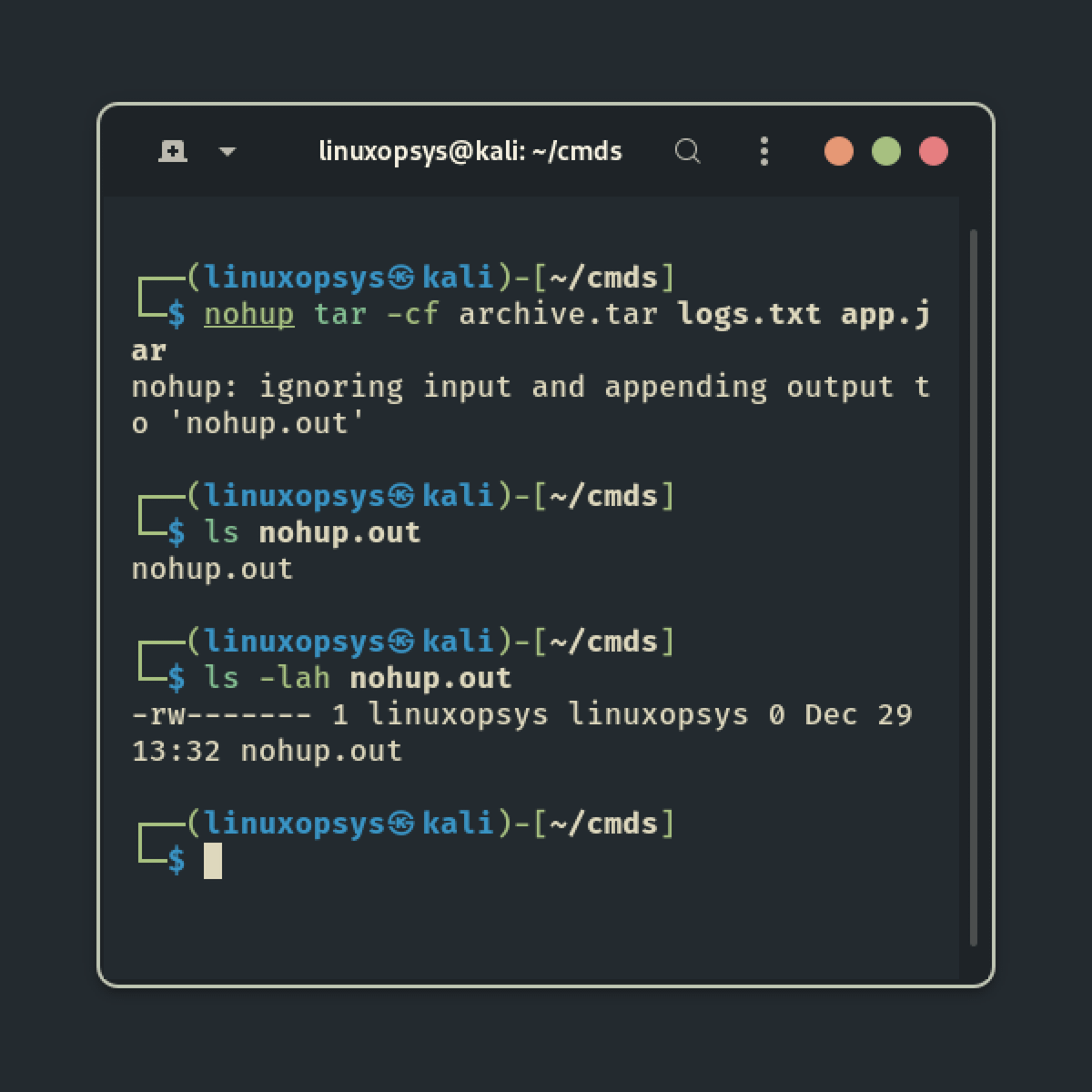
The nohup command also creates a file named nohup.out to store the command's output.
17. tldr
The TLDR (Too Long; Didn't Read) pages provides a summarized practical usage of Linux commands. They simplify man pages by providing practical examples.
This tool is useful when you only want to check the syntax of a few common commands without having to scroll through a detailed manpage.
$ tldr exa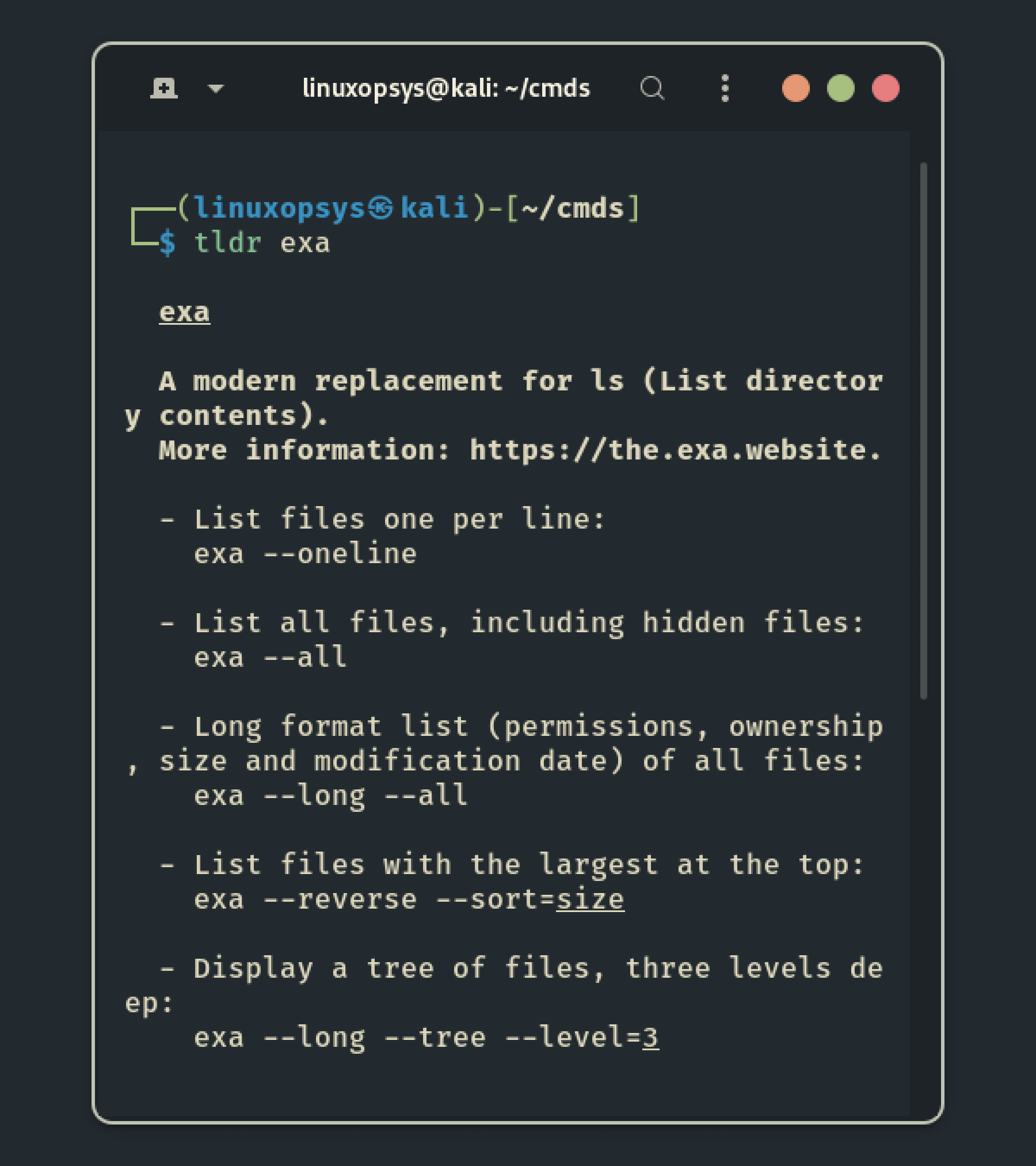
18. btop++
An excellent replacement for top/htop written in C++. Btop++ is a resource monitor that displays statistics and usage information for the processor, memory, disks, network, and processes.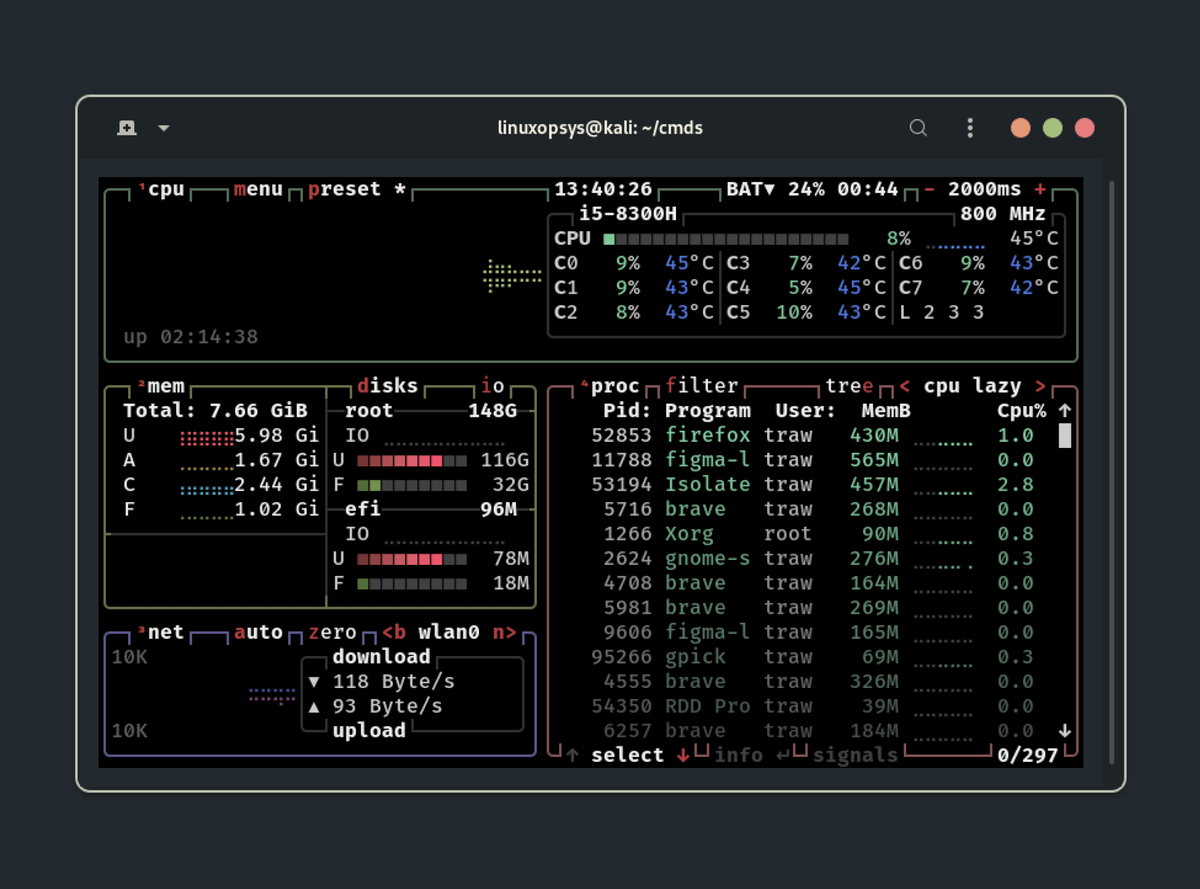
29. duf
If you need a good replacement for the du command, the duf command is your best bet. Duff has the following capabilities:
- Colorful, user-friendly output
- Adapts to the theme and width of your terminal
- Sort the results based on your requirements
- etc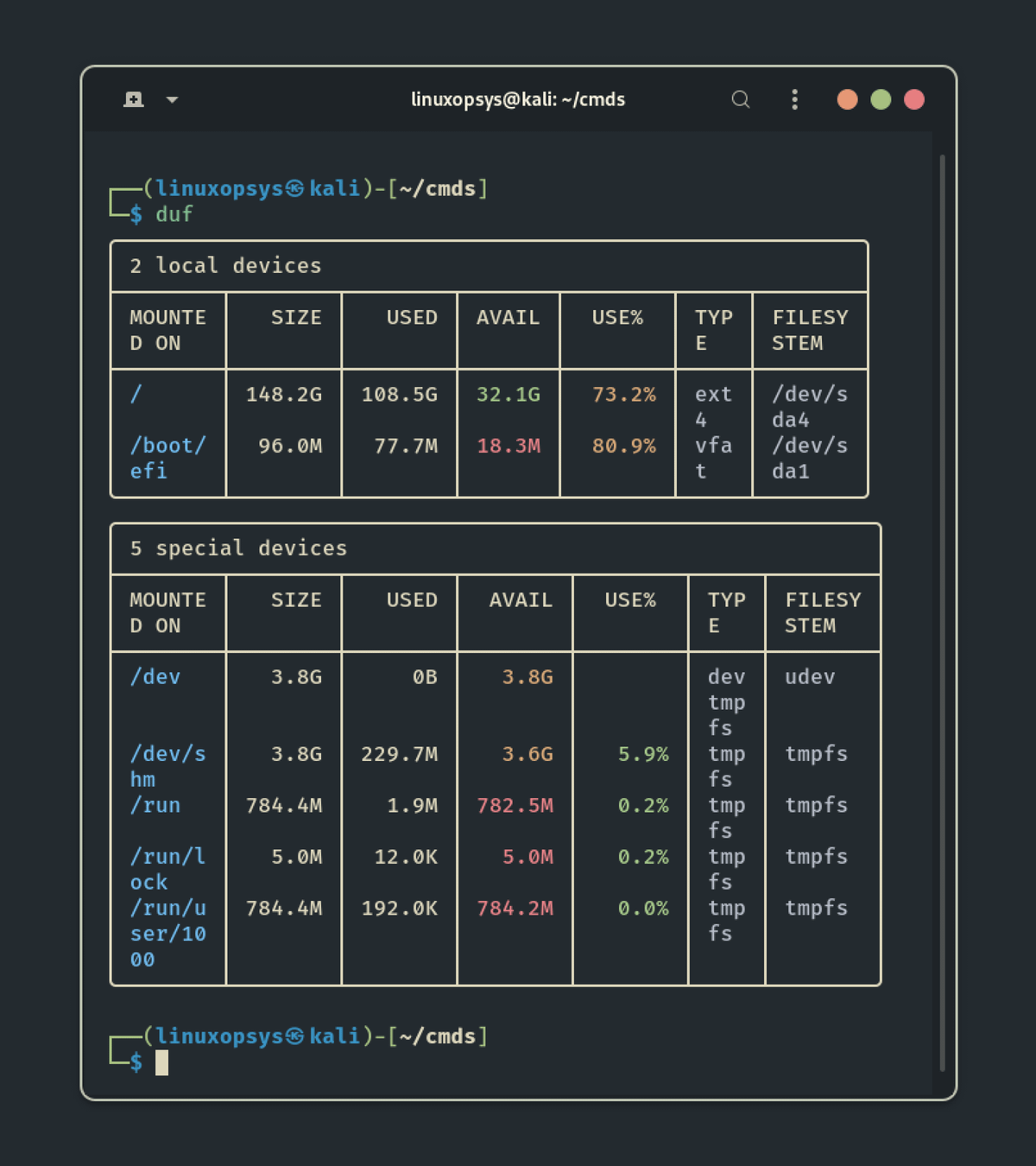
20. r
You can also "r" command to Re-run last executed commands in Linux.
This command will save you a couple of keystrokes as compared to other alternative ways.
r is a ZSH builtin, so this only works with ZSH.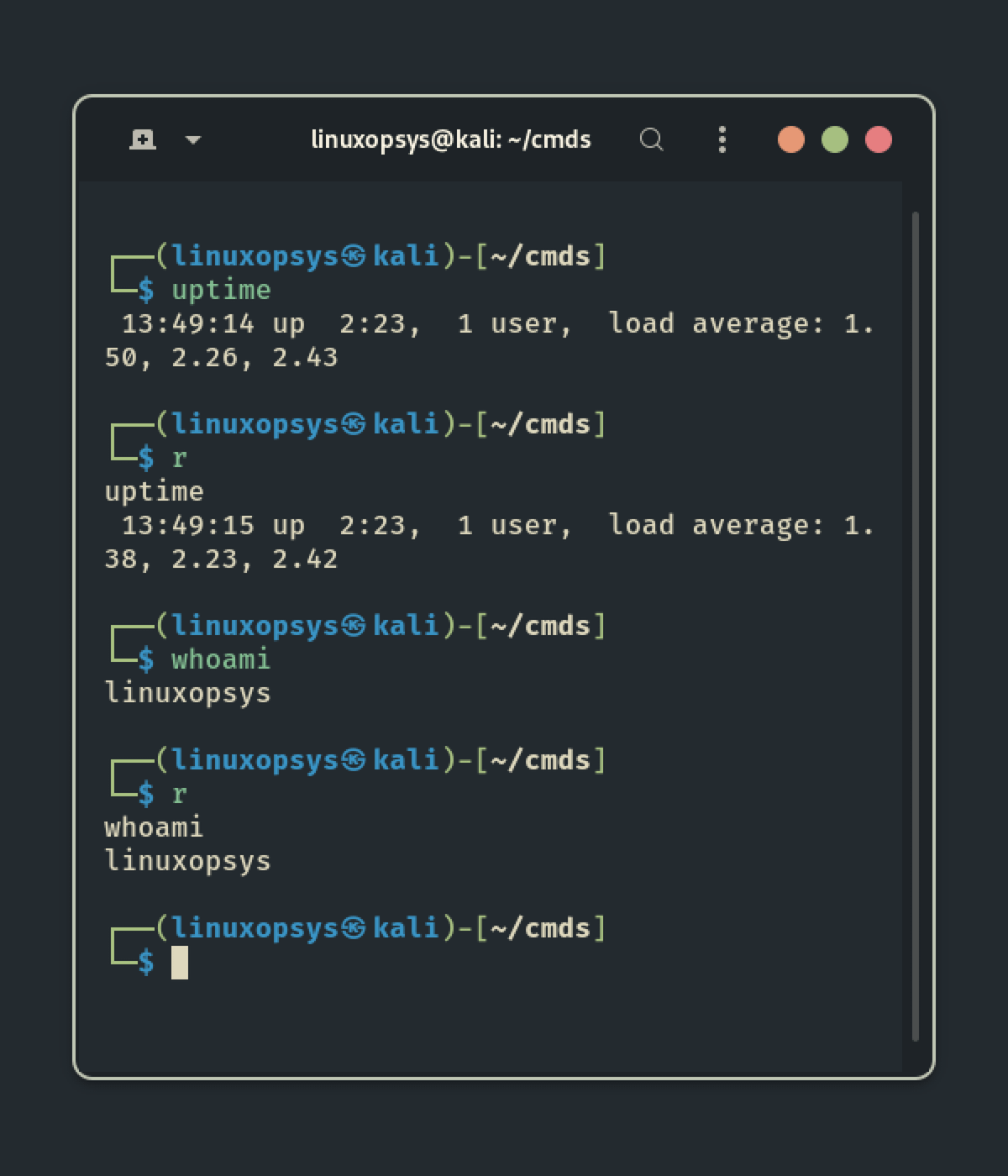
That's all! Thank you for getting this far. I hope you find this thread useful.
If you found this thread helpful
1. Toss us a follow for more daily threads on Linux, sysadmin, and DevOps→@linuxopsys
2. Like and RT the first tweet so that other Linux users can find it as well.

Linuxopsys
@linuxopsys
Learn something new daily from our daily infographic tweets. What to expect to learn from us: Linux🐧, Sysadmin💻, and DevOps.