Input, Output, and Error Redirection in Linux explained (with examples):
Most Unix/Linux system commands accept input from your terminal and return the resulting output to it.
A command normally reads its input from the standard input, which is usually your terminal.
Similarly, by default, a command writes its output to standard output, which is your terminal.
The concept of redirection refers to the ability to redirect stdin, stdout, and stderr from their usual output locations to another file or command (or even peripheral devices).
When a program is executed in Bash or other Linux shells, it uses 3 different I/O streams. Each stream is represented by a numerical file descriptor.
Here are the standard Linux I/O streams:
• 0 - stdin, the standard input stream.
• 1 - stdout, the standard output stream.
• 2 - stderr, the standard error stream.
A file descriptor is basically a number that uniquely identifies an open file in a computer's operating system.
The input stream sends data to the program, typically by typing on the keyboard.
The program output is directed to the standard output stream, while program error messages are directed to the standard error stream.
Both the input and error streams are printed on the terminal screen by default.
Using the piping technique, the output of another program can be directed to the input stream of another program and act as the standard input.
Redirecting Standard Output (STDOUT)
Redirection is a method of capturing a program's output and sending it as input to another program or file.
The n> operator, where n is the file descriptor number, can be used to redirect streams.
When n is not specified, the standard output stream is used. The following two commands, for example, are identical; both will redirect the command output (stdout) to a file.
$ echo "Linux is the future" > linux.txt
$ echo "Linux is the future" 1> linux.txt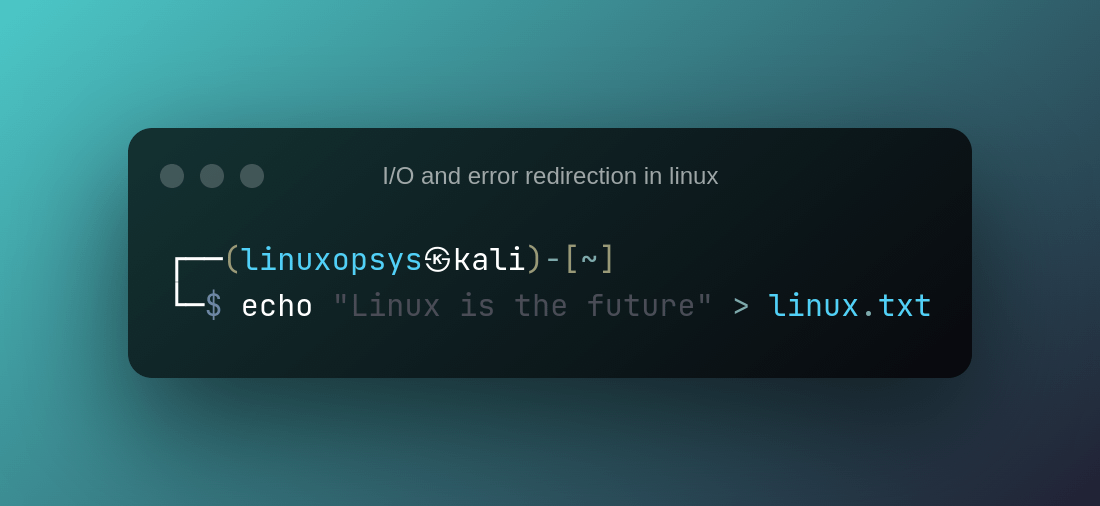
If you want to redirect the standard error (stderr) to a file using the file descriptor of 2 and the >. Here is an example:
$ ping badhost.com 2> error.txt
This will redirect the errors produced by the above command to a file called error.txt.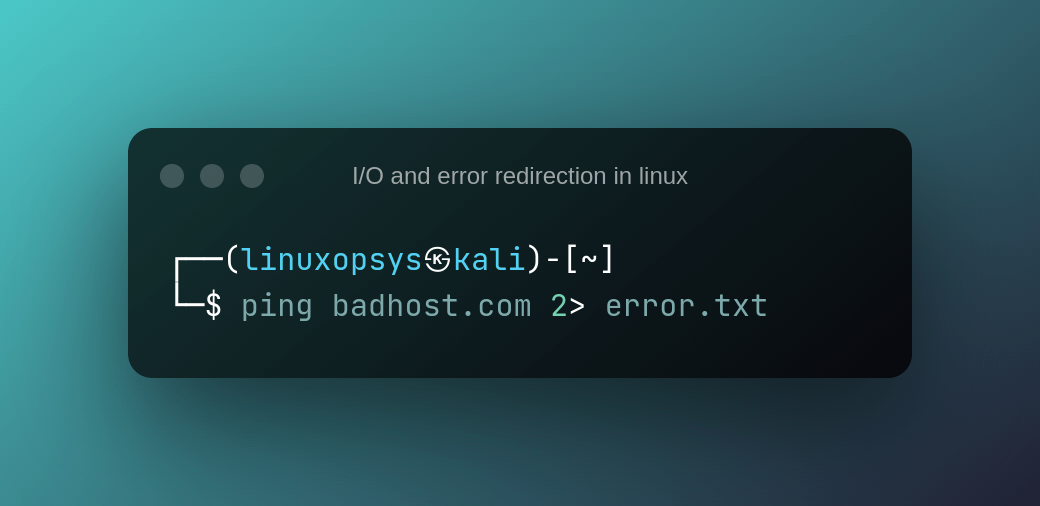
Both stderr and stdout can be written into separate files. Here is an example:
$ cmd 2> error.txt > output.txt
This will redirect the errors produced by the cmd command to the error.txt file and the output produced to the output.txt file.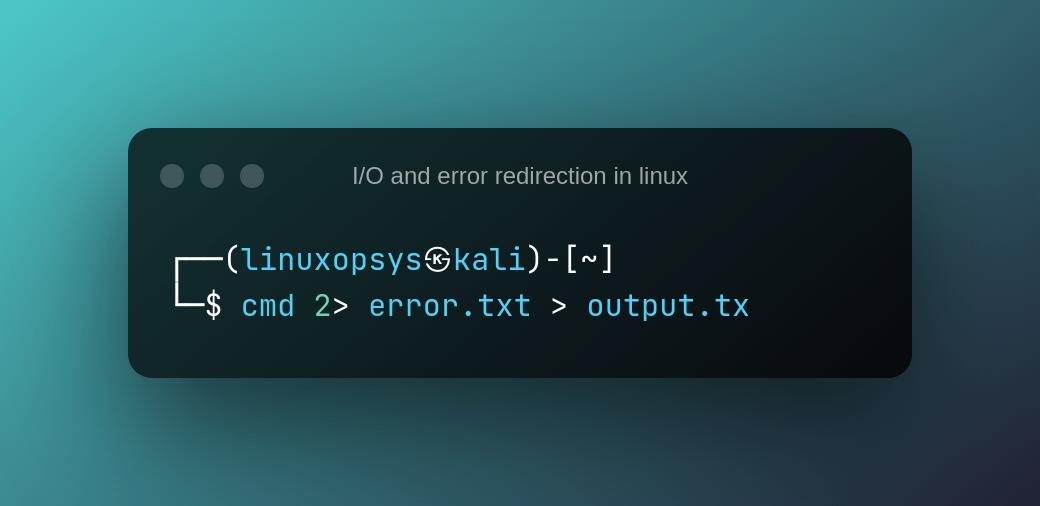
In most cases, you may not want to log the error messages to a file or standard error; instead, redirect stderr to a special location on your Linux system called /dev/null:
Here is an example of how you can do it:
$ cmd 2>/dev/null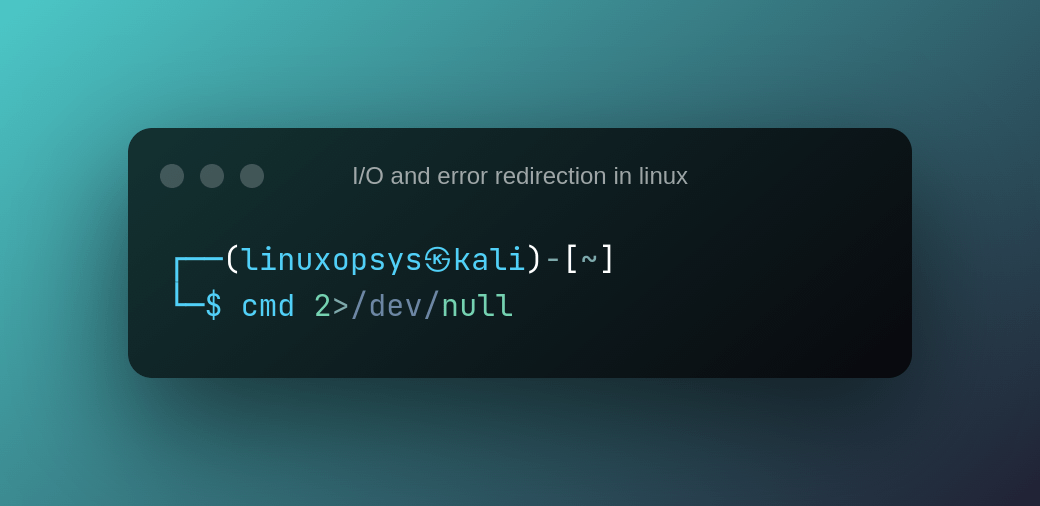
Redirecting stderr to stdout
When storing the program's output to a file, it's usual practice to redirect stderr to stdout so that everything goes into a single file.
Use the following command to redirect stderr to stdout and have error messages written to the same file as the standard output:
$ cmd > file.txt 2>&1
> file redirects stdout to file.txt, and 2>&1 redirects stderr to the current stdout location.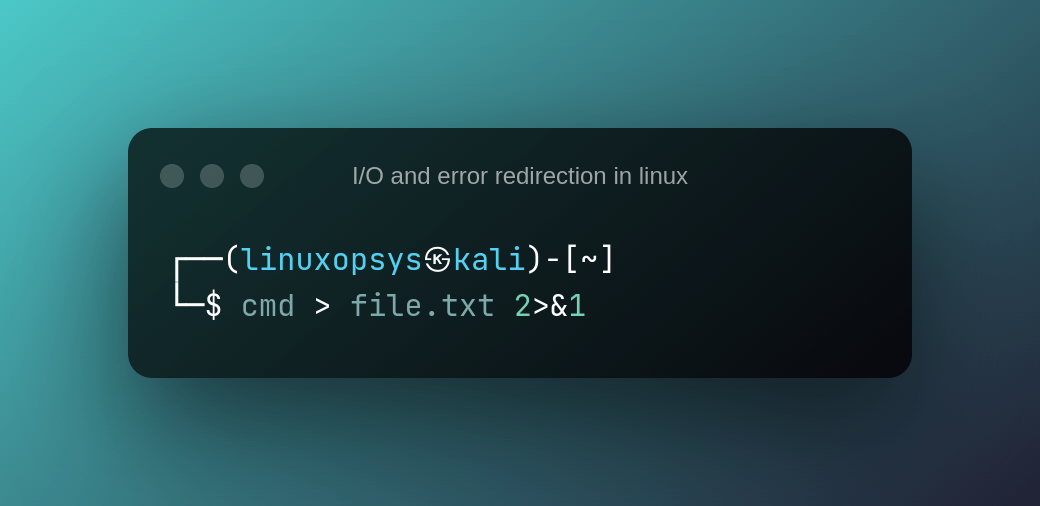
It is important to note that the order of redirection is crucial. The following example, for example, redirects only stdout to the file. This occurs because STDERR is redirected to STDOUT before STDOUT is redirected to the file.
$ cmd 2>&1 > file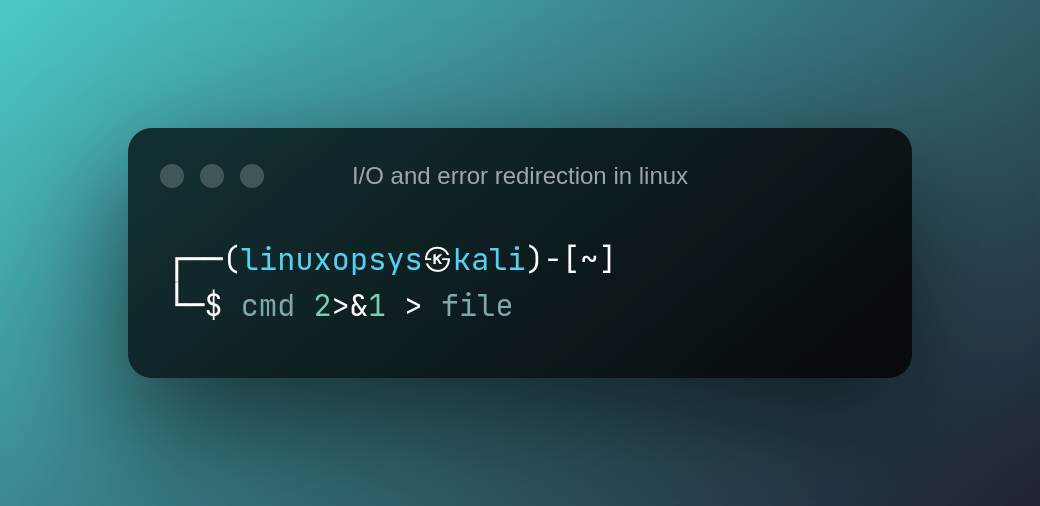
The &> construct can also be used to redirect stderr to stdout. &> has the same meaning in Bash as 2>&1:
$ cmd &> file.txt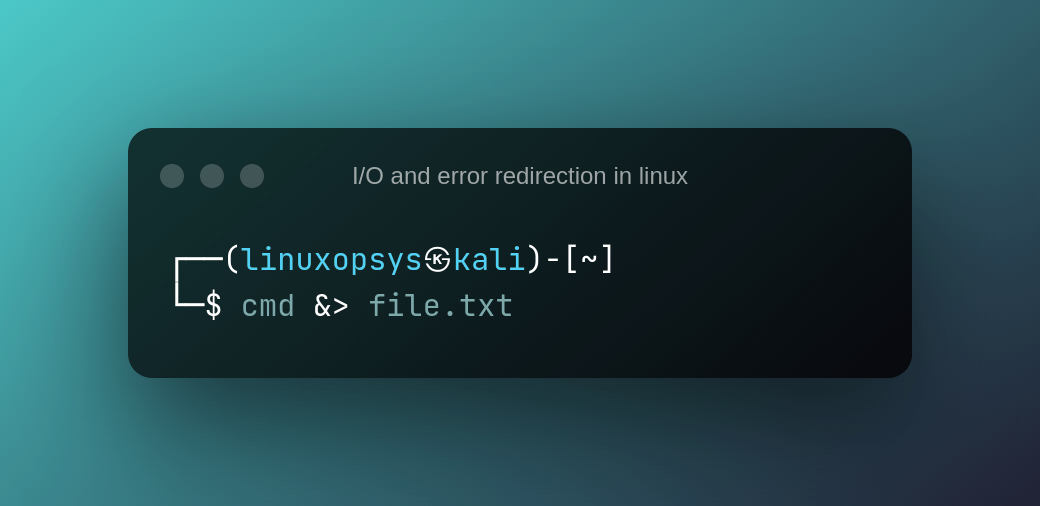
The input redirection
You can use stdin redirection to pass the contents of a text file to a command.
Stdin is rarely used. Because most Linux commands accept filenames as arguments, stdin redirection is often unnecessary.
Here is an example of input redirection in use:
$ wc < file.txt
Though stdin is rarely used, it is preferable to pipe, especially to avoid the needless use of the cat command.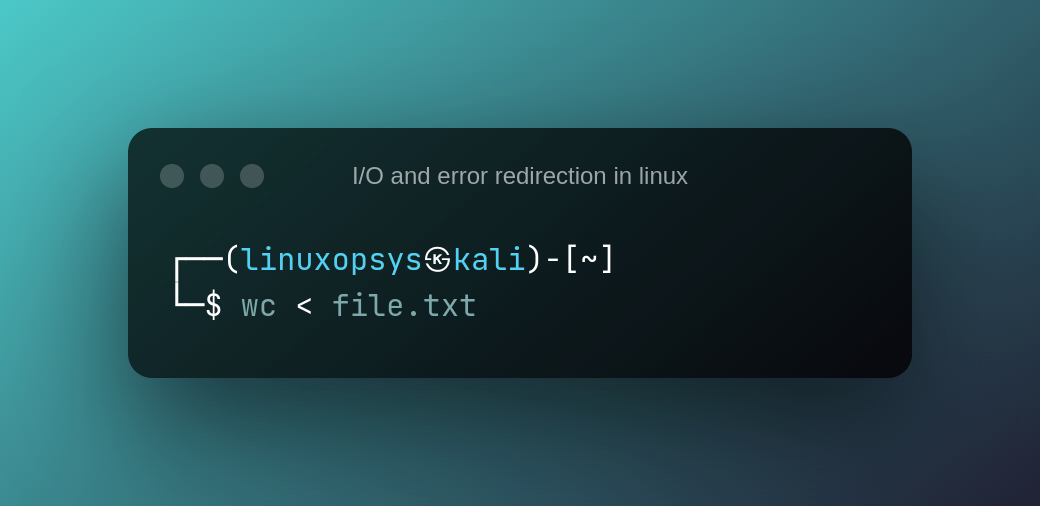
Many people would, for example, use the preceding example with cat and then pipe the output of cat to the second command to act as in the input. To be honest, there is no need to use the cat command here.
$ cat file.txt | wc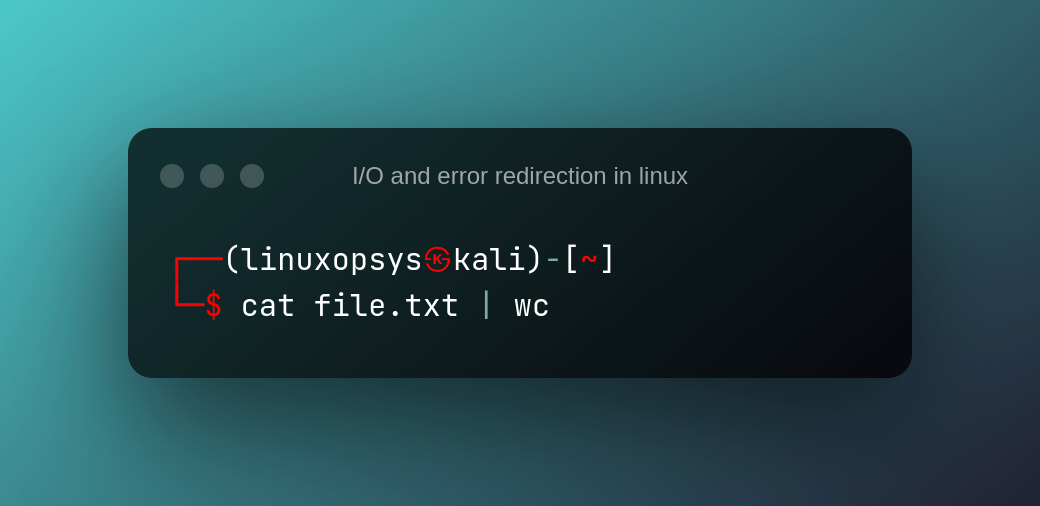
For a more in-depth guide on how to use command line redirections, check out this article on our website.
Bash Command Line Chain Operators in Linux with Examples:
linuxopsys.com/topics/bash-chain-operators-in-linux
That's all! Thank you for getting this far. I hope you find this thread useful.
If you found this thread helpful
1. Toss us a follow for more daily threads on Linux, sysadmin, and DevOps→@linuxopsys
2. Like and RT the first tweet so that other Linux users can find it as well.

Linuxopsys
@linuxopsys
Learn something new daily from our daily infographic tweets. What to expect to learn from us: Linux🐧, Sysadmin💻, and DevOps.