Last command in Linux explained🧵:
When managing a multiuser system, you'll frequently need to know who, when, and from where people are logging in.
last is a command-line utility that displays information about system users' most recent login sessions.
It is extremely useful when tracking user activity or investigating a possible security breach.
This thread describes how to use the last command to audit who logged into the system.
[+] Last command usage
The last command has the following syntax:
$ last [options] [username...] [tty...]
When a user logs into the system, a record of that session is added to the /var/log/wtmp file and the last command reads the data in that file to print user login and logouts information.
When last is called without any options or arguments, the output looks like this:
$ last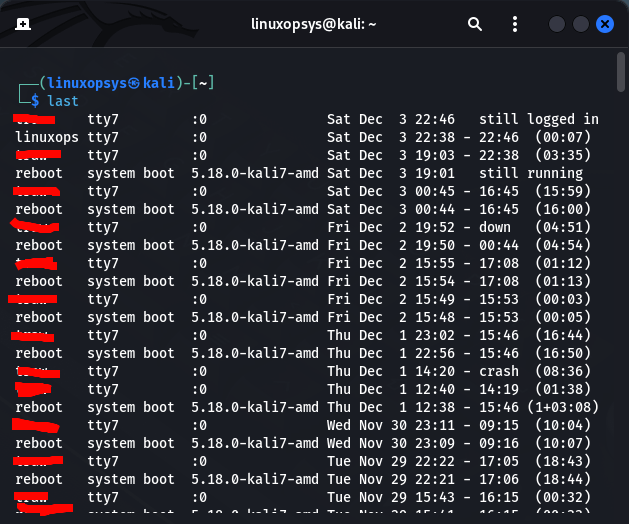
Each line of output contains the following columns from:
• The first column contains the usernamme. Last shows the special users reboot and shutdown when the system reboots or shuts down.
• The second column is the tty where the session occurred.:0 usually indicates that the user was logging into a desktop environment.
• If there is remote login to the machine last command will show a column which contains the the IP address or the hostname from which the user logged in.
• The session start and stop times.
• The last column shows the session's duration. If the session is still active or the user has not logged out last will diplay "still loggd in", otherwise it will display the duration.
To limit the output to a specific user or tty, use the following command with the user name or tty as an argument:
$ last <username>
You can also specify multiple usernames and ttys as arguments with the last command:
$ last <user1> <user2> <usern>
[+] Last command options
last accepts a number of options for limiting, formatting, and filtering the output. Here , we'll only go over the most common options.
[+] Limiting last output
Last command followed by a single hyphen specifies the number of lines to be printed on the command line. To print only the last 8 login sessions, for example, enter:
$ last -8
[+] Filter ouput by date
You can find out who logged into the system on a specific date by using the -p (--present) option:
$ last -p yyyy-mm-dd
[+] Filter by since and until a specified time
Last can be instructed to display lines since or until a specific time by using the -s (—since) and -t (—until) options.
These two options are frequently used in conjunction to specify a time interval for which the information should be retrieved. For example, to display the login records from 1 December to 3 December, run:
$ last -s 2022-12-01 -u 2022-12-03
[+] Display fulltime
Last does not display the seconds or the year by default. To view full login and logout times and dates, use the -F, --fulltimes option:
$ last -F
[+] Force last to display IP Address and hostnames
The -i (--p) option forces last to always display IP addresses, while the -d (--dns) option displays hostnames:
$ last -i
$ last -d
End of this thread.
Visit @linuxopsys and check out more exciting Linux content. 🐧😎

Linuxopsys
@linuxopsys
Learn something new daily from our daily infographic tweets. What to expect to learn from us: Linux🐧, Sysadmin💻, and DevOps.